PEGA — Send Notification workflow smart shape usage and its breakdown
PEGA — Send Notification workflow smart shape usage and its breakdown
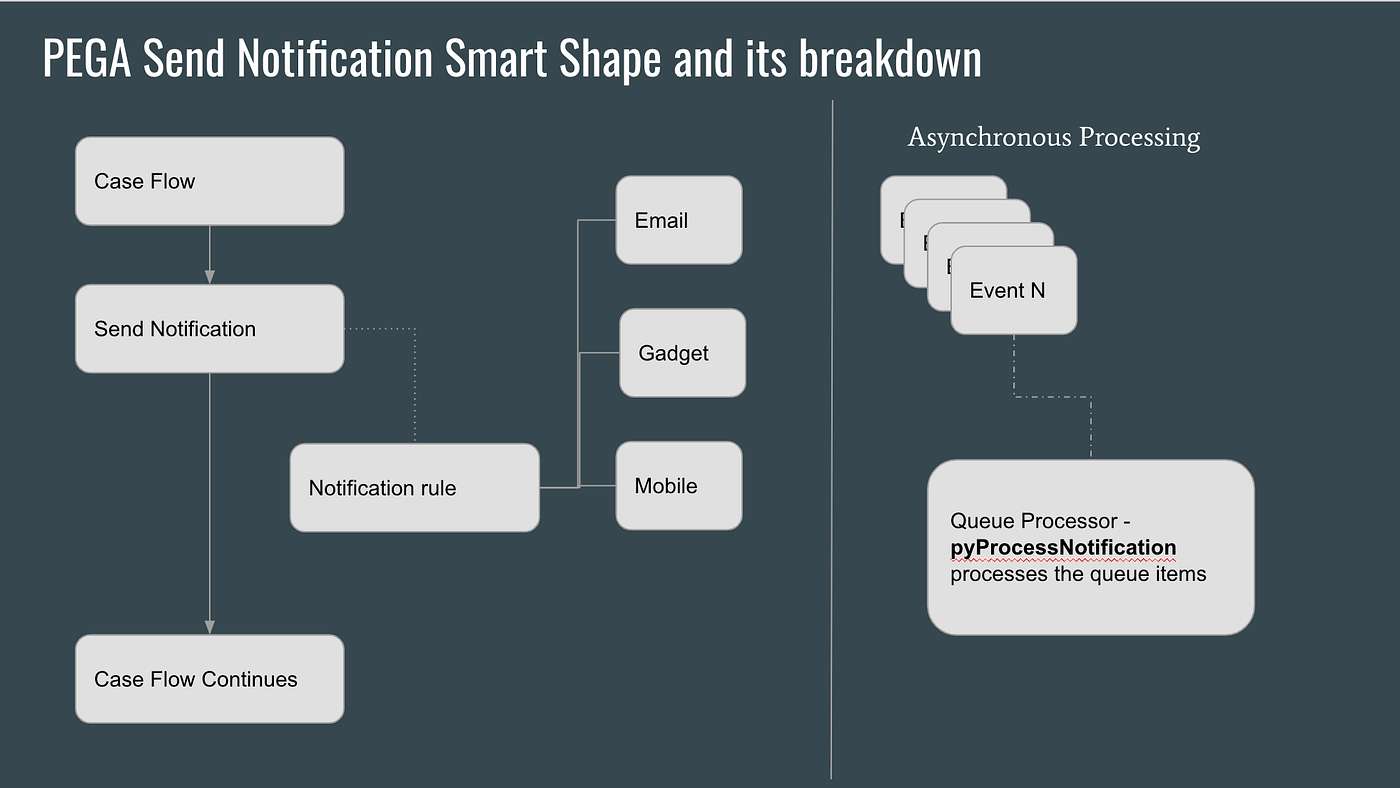
In this post, let’s understand the PEGA Send Notification workflow smart shape usage and its breakdown. If the organization is looking for event notifications for business stakeholders in a case workflow then we can address it using this smart shape. For example, business use cases include — Loan Rejection, Claim Approval, Customer complaints etc…. Notifications include — Email, Gadget [Notification icon in the user portal], and Mobile. The end customer email communication is achieved using the Send Email smart shape.
In this example, let's take a simple scenario — we have a customer complaint case and a user needs to get a notification whenever a customer complaint is getting created. It is an asynchronous process. Send Notification smart shape refers to the Notification rule form. As part of the case processing, send notification smart shape generates the queue items and the pyProcessNotification queue processor process these items.
Note: Creating a simple PEGA application and respective case type is out of scope from this article's perspective.
Step 1: Add the Send Notification Smart Shape in a case workflow
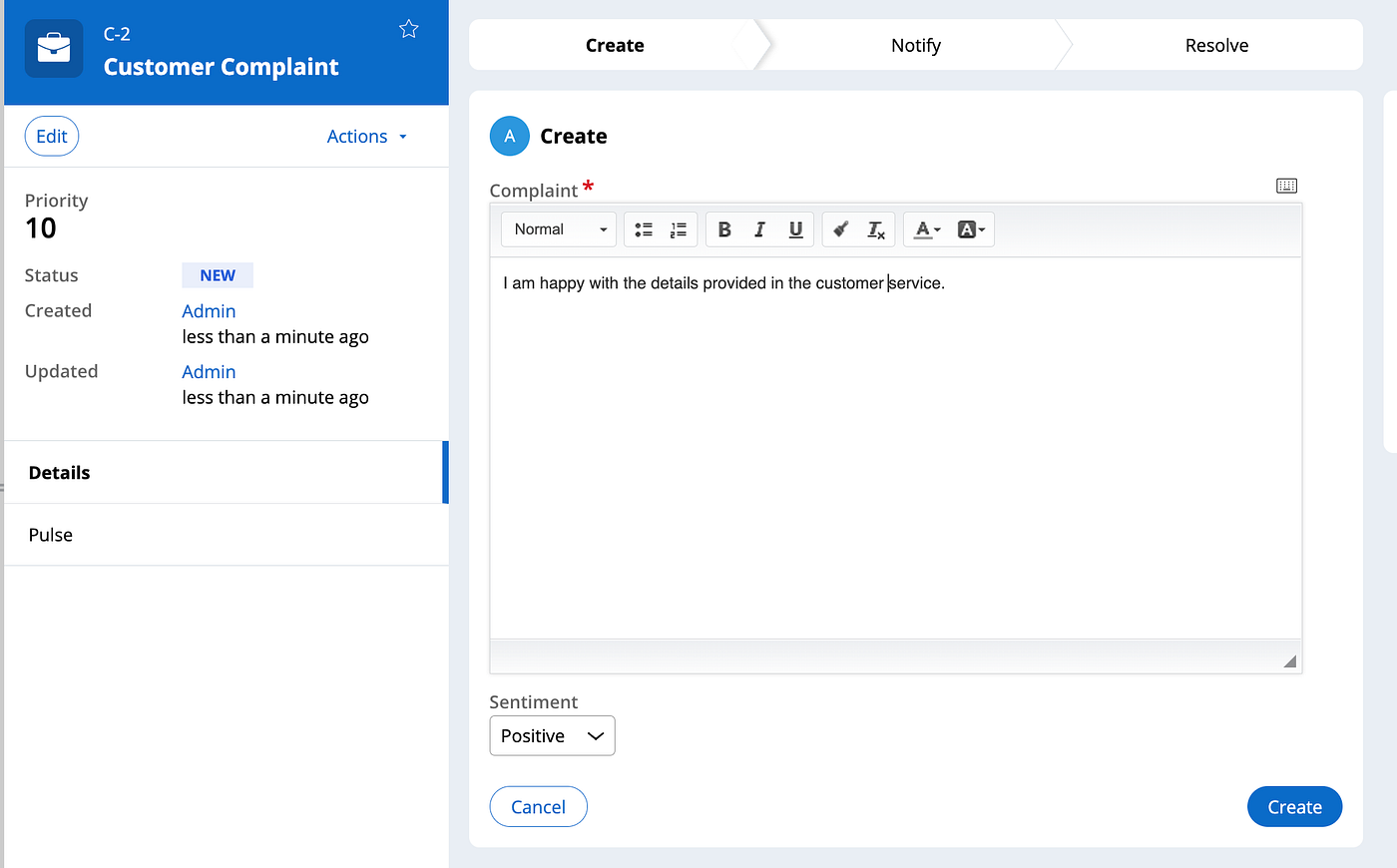
A simple customer complaint case that captures the complaint and the sentiment. In this example, take an easy scenario — whenever a customer complaint gets created then send gadget event notifications to a user.
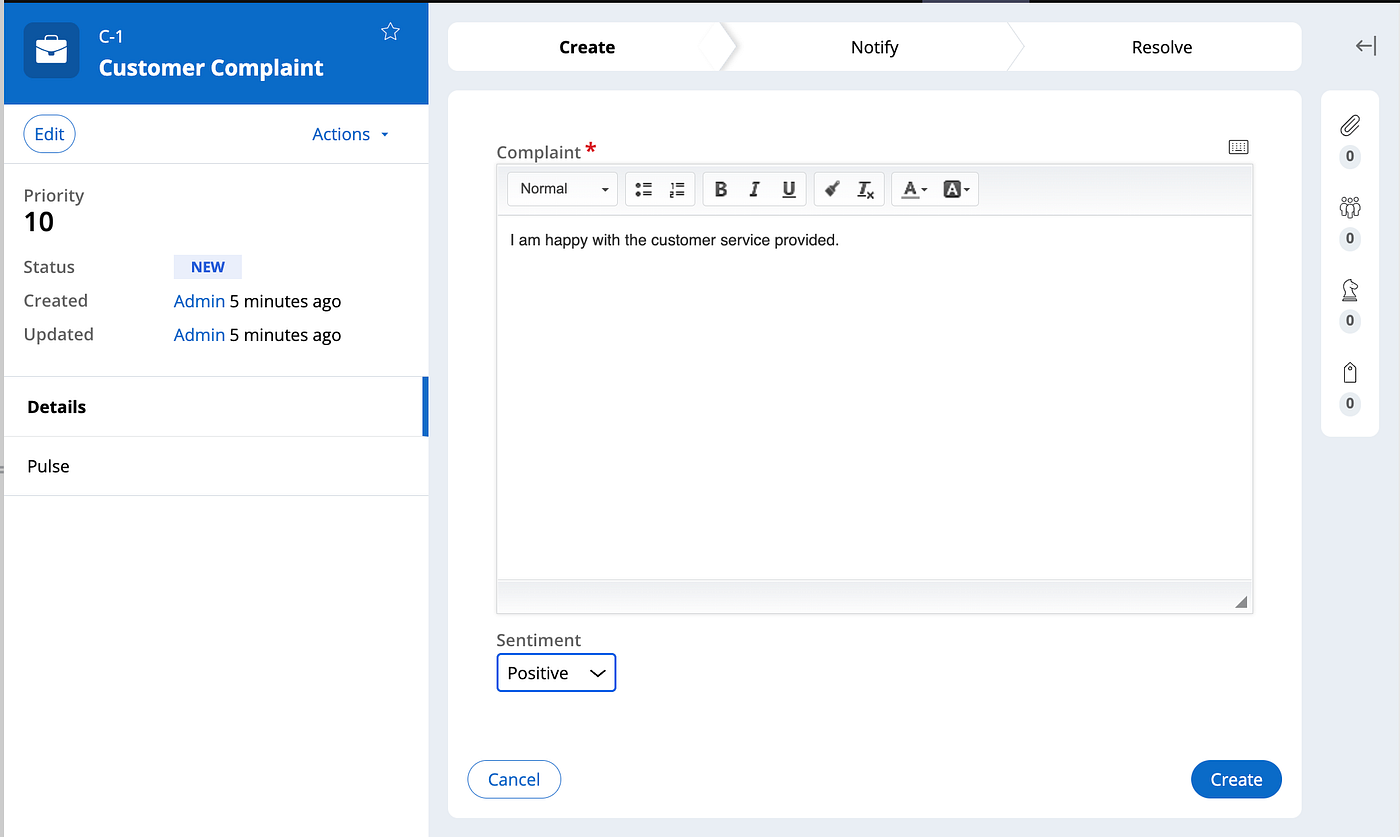
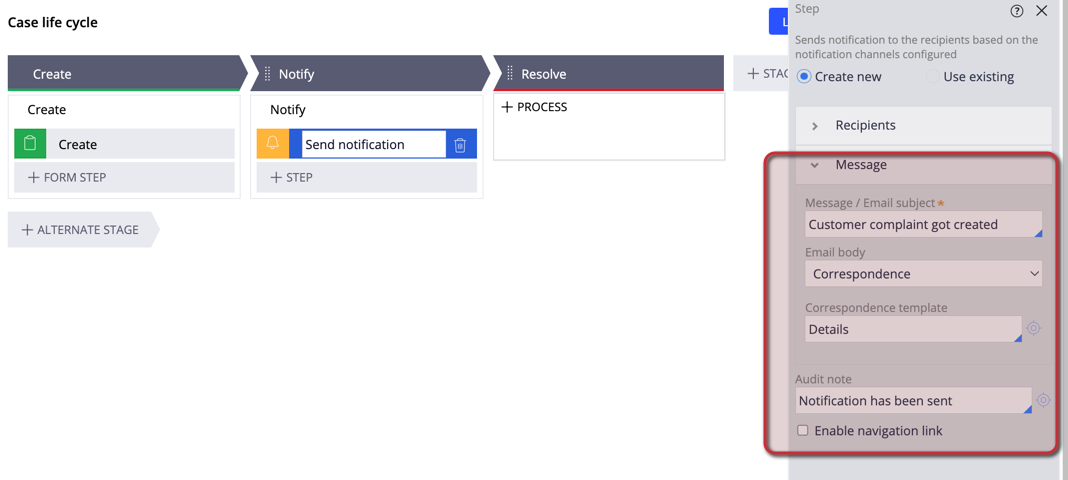
Update the Notify stage step to send the notification.
Populate the Notification user information in the default data transform.
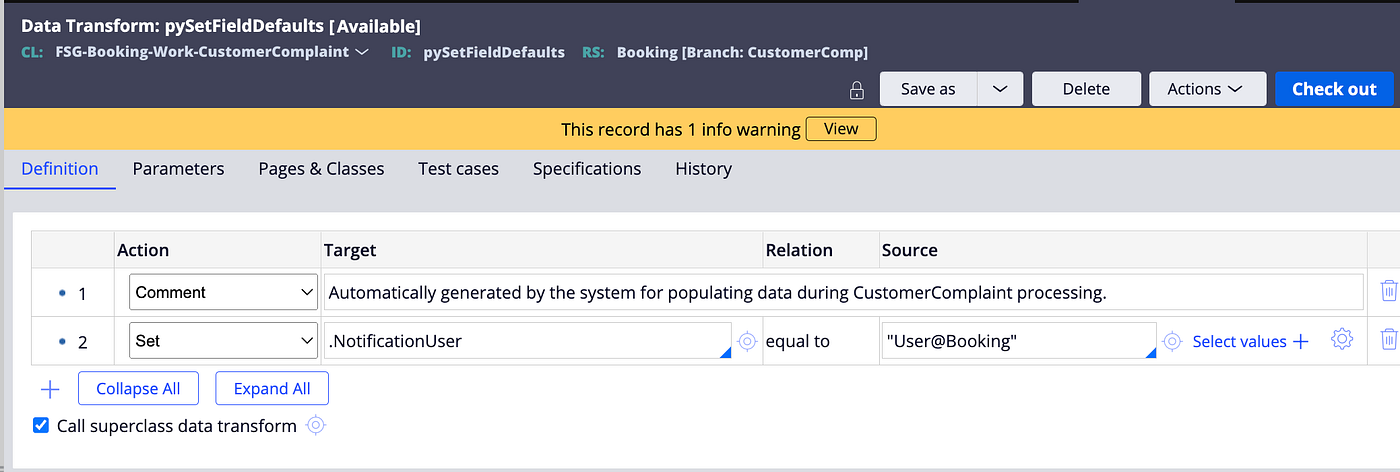
Step 2: Update the Notification Rule as per the business needs
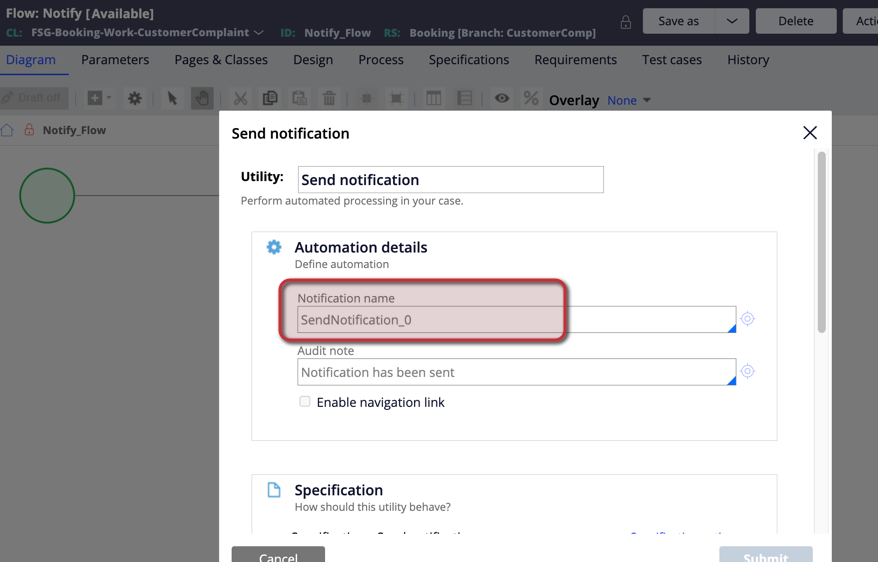
Add the Send Notification smart shape to the Notify Stage and update the recipient's to the NotificationUser field.
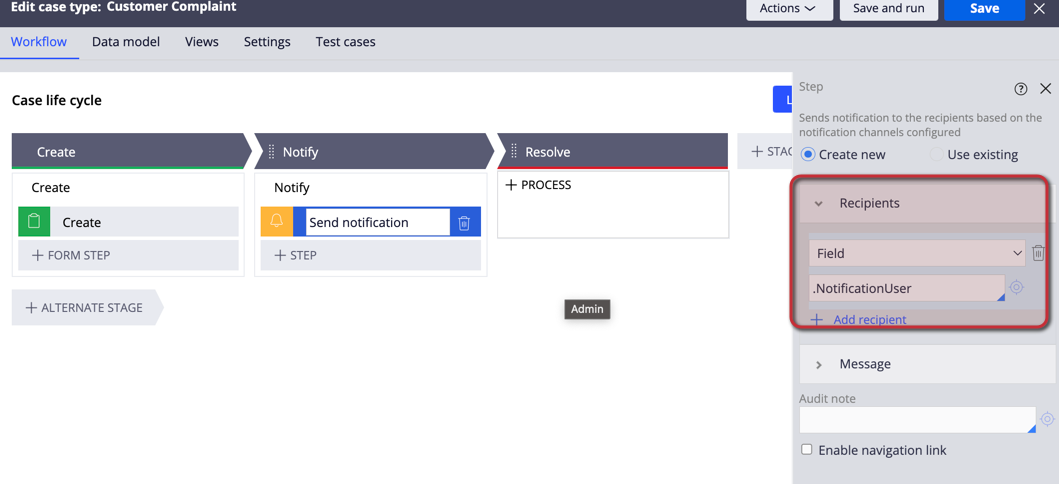
Update the Message details and perform save.
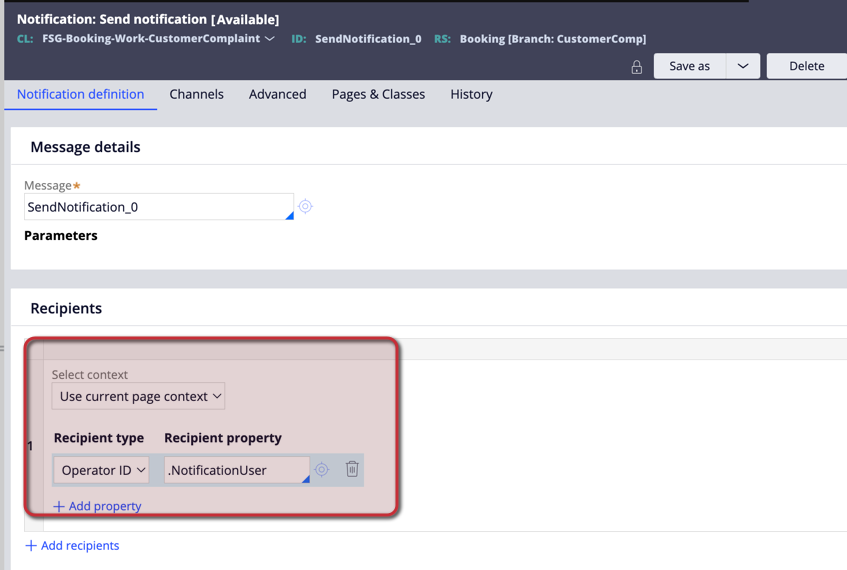
Verify the notification rule form configurations. Open the respective rule form- Update the recipient type to “Operator ID”
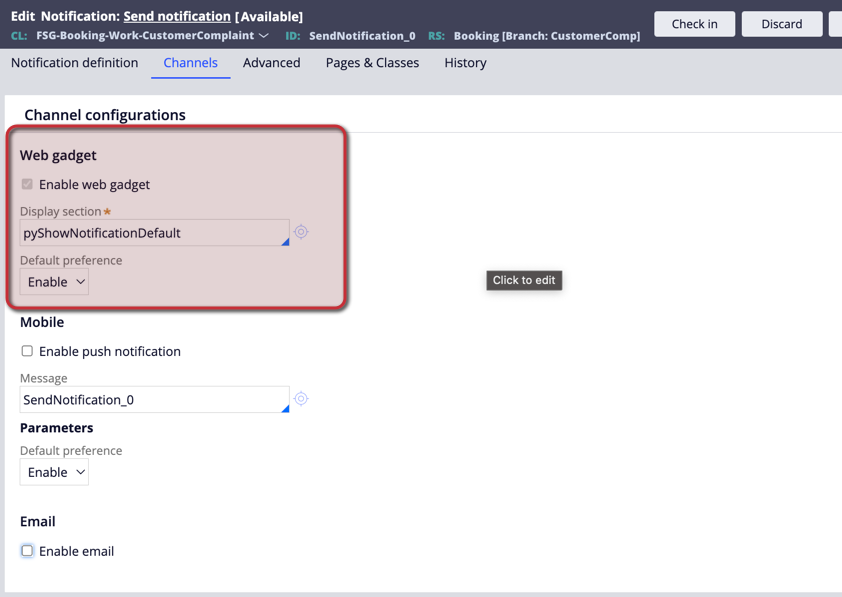
Update the channel information as per the business needs. In this example, let’s disable email, and mobile notifications and verify only the web gadget.
Step 3: Test the Notification changes with the end user
Now create the customer complaint case.
Now, log in with the user — “user@booking” and verify the notification gear icon.
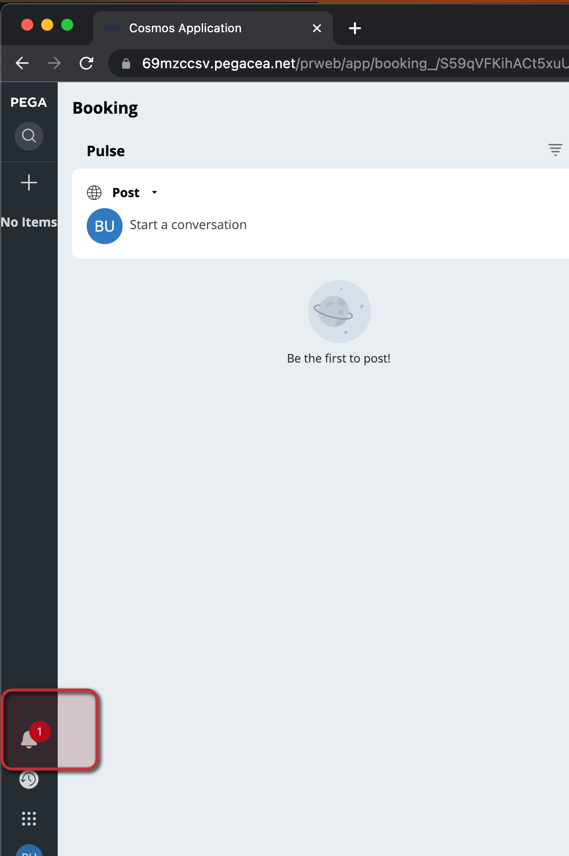
Click on it to see the notifications
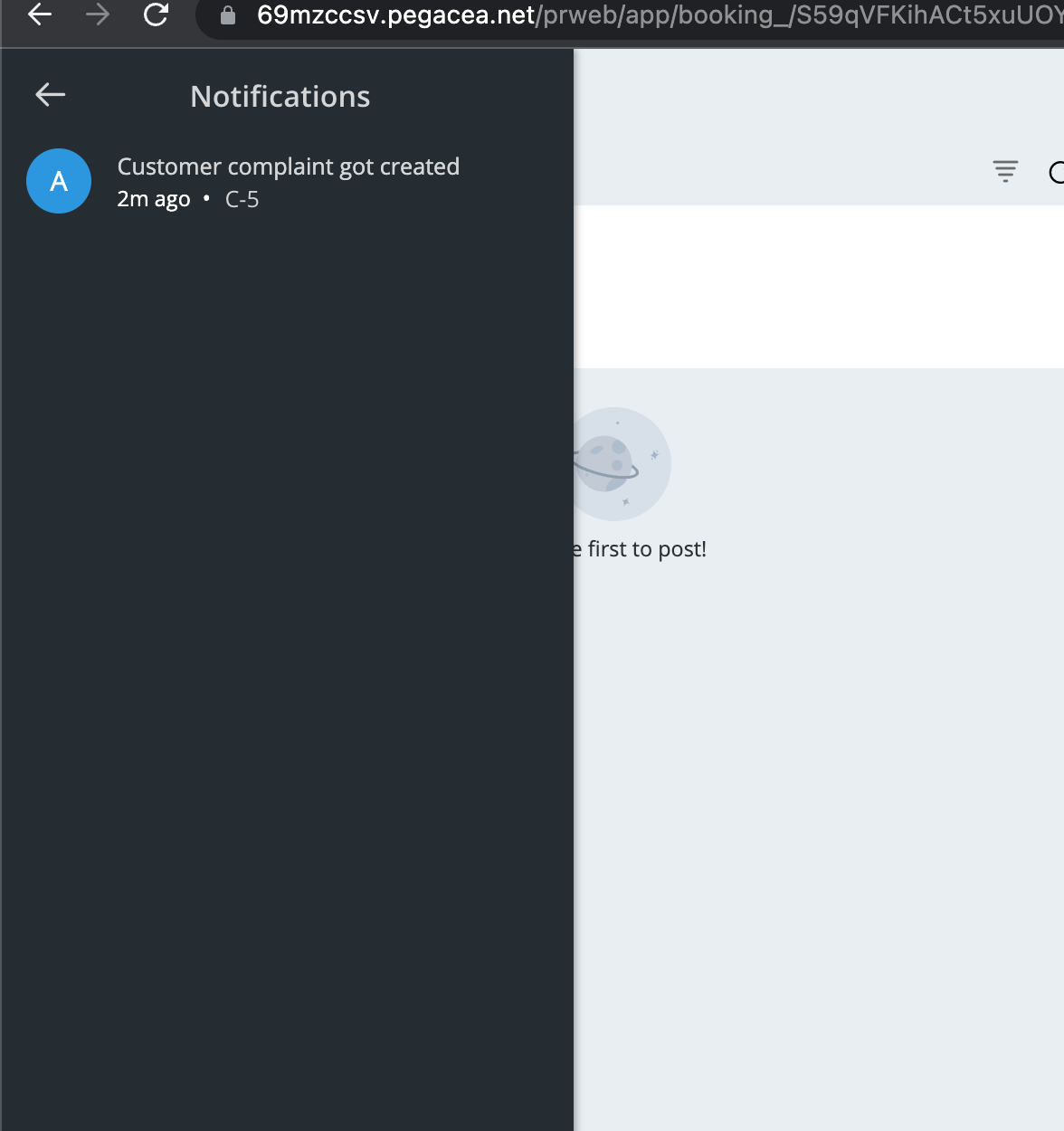
Hurrrayyyyyyyy, congratulations :) Now you successfully understood the PEGA Send Notification Smart shape usage and its breakdown. Happy learning :)