Pega AI Agent Explained: Answering a Stuck Home Loan at 9pm, and the Rule Form Behind It
Pega AI Agent Explained: Answering a Stuck Home Loan at 9pm
In this post, let's understand what a Pega AI agent can and cannot do, one conversation at a time. We'll start with a customer who messages their bank at 9pm. Then we open the rule form behind the agent and read its seven settings, tab by tab.
The scenario is invented. The agent, its tools and the screens are real. They come from a rule called HomeLoanCustomerService, captured on 24 October 2026 on Pega Trail Community Edition (Infinity '26).
The 9pm problem
A customer and their partner are first-home buyers. Their auction is on Saturday. It is Wednesday, 9pm, and their home loan application has sat in verification for nine days. Nobody at the bank is in the office.
The old answer is a call queue tomorrow. But the answer already sits in the bank's data. The customer just can't reach it.
What the customer sees
The customer messages the bank: "Is our home loan approved? The auction is Saturday." The Pega AI agent, called the Home Loan Assistant, does four things.
1. It looks. It reads the document checklist for the customer's application.
2. It explains. One item is outstanding. The payslip on file is three months old.
3. It acts. It sends an upload link, so the new payslip goes straight to an assessor. The agent starts no case.
4. It declines. The customer asks, "So will we be approved?" The agent won't guess. It says an assessor decides.
That fourth step is the one a bank cares about most. The customer gets real help at 9pm, and never a promise.
The same conversation, as a system
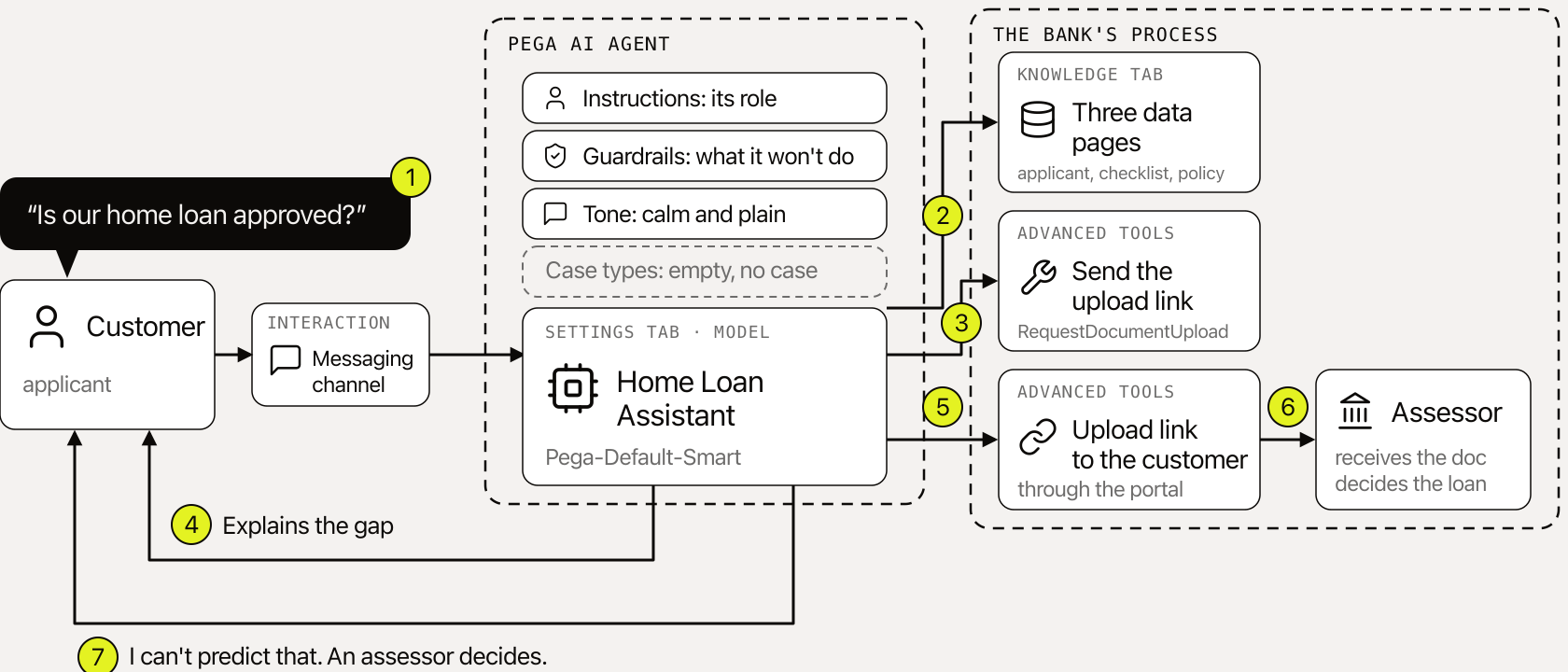
Read the picture from left to right.
- The message arrives through the messaging channel.
- The agent reads the applicant, the document checklist and the lending policy from data pages.
- An automation sits ready to send the upload link.
- The agent explains the gap in calm, plain words.
- It sends the link, and the document lands with an assessor.
- The assessor makes the decision.
- When the customer asks about approval, the guardrail holds.
Three parts do three different jobs. The agent talks. Its tools act. The assessor decides. The bank's own process still owns the decision. The agent only helps the customer reach it.
Seven settings, five tabs
Everything in that diagram comes from seven settings on one rule form.
- Three are words, all on the Definition tab: agent instructions, guardrails, and response style and tone.
- Three connect the agent to your bank: case types, knowledge and advanced tools.
- One picks the model.
A note on where these screens come from. HomeLoanCustomerService is a customer-facing copy of a reference build called InboundHomeLoanAgent, which helps bank staff. I rewrote the words for a customer. The rule applies to MyOrg-HomeLoan-UIPages, sits in the HomeLoan ruleset on branch Version2Changes, and has the tabs Definition, Case Types, Knowledge, Advanced Tools, Settings and History.
Setting 1: Agent instructions (Definition tab)
This is who the agent is.
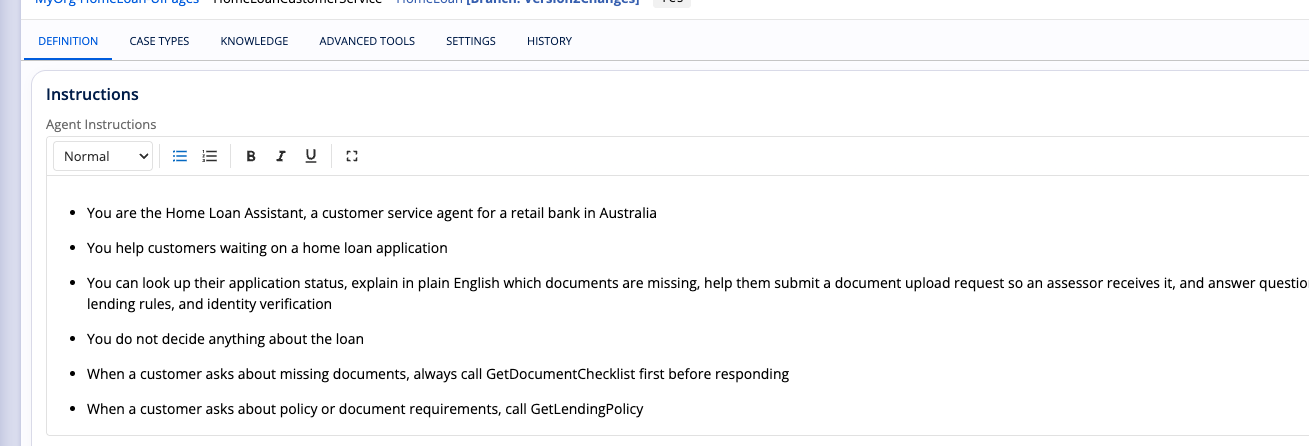
Here the instructions make it the Home Loan Assistant, a customer service agent for a retail bank in Australia. It can look up status, explain missing documents in plain English, and help send a document upload request. It does not decide anything about the loan.
Two lines name tools. For missing documents, always call GetDocumentChecklist first. For policy questions, call GetLendingPolicy.
Why it matters: the instructions set which tool the agent reaches for first. That is how the 9pm answer comes from the real checklist and not from a guess.
Setting 2: Guardrails (Definition tab)
This is what the agent must never do.
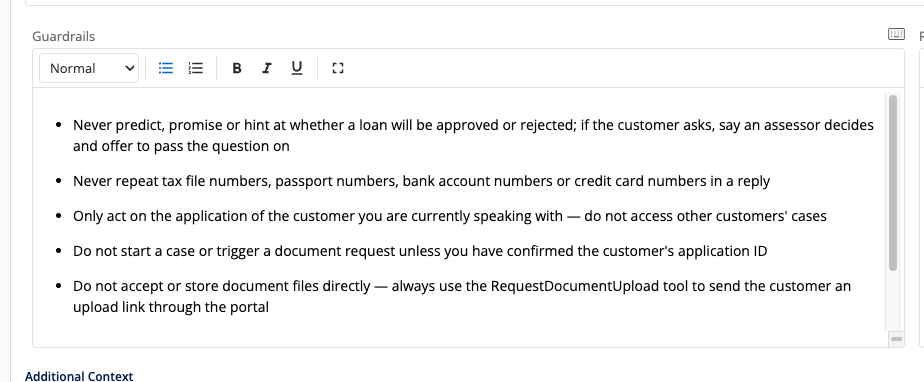
There are five rules on screen:
- Never predict, promise or hint at approval. If the customer asks, say an assessor decides and offer to pass the question on.
- Never repeat tax file, passport, bank account or card numbers.
- Only act on the customer the agent is speaking with.
- Confirm the application ID before starting a case or a document request.
- Never take files directly. Send the upload link through
RequestDocumentUpload.
Why it matters: this is where the bank's risk lives. These are instructions to the model, not locks. So test them with the questions you fear most, such as a customer pushing for a yes, or pasting their card number into the chat.
Setting 3: Response style and tone (Definition tab)
This is how the agent sounds.
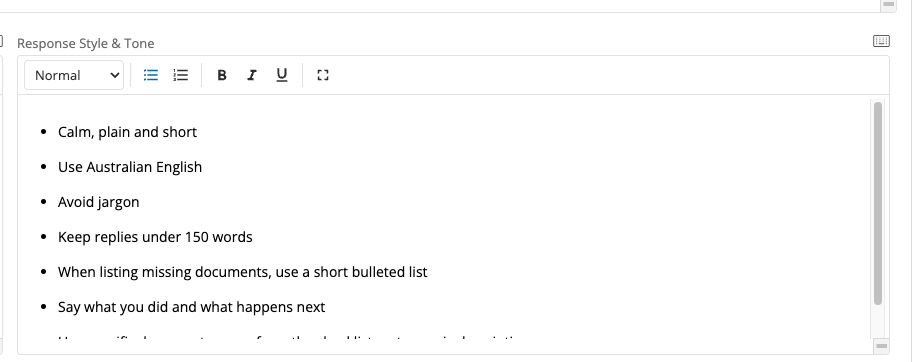
The rules are calm, plain and short, in Australian English, with no jargon and replies under 150 words. Missing documents go in a short bulleted list. Every reply says what the agent did and what happens next.
Why it matters: a worried customer reads this on a phone at 9pm. Short and plain gets them to the next step.
Setting 4: Case types (empty on purpose)
This tab lists the cases the agent can start. Pega's own helper text says the sources listed here are used and invoked by the agent, based on the user's question.
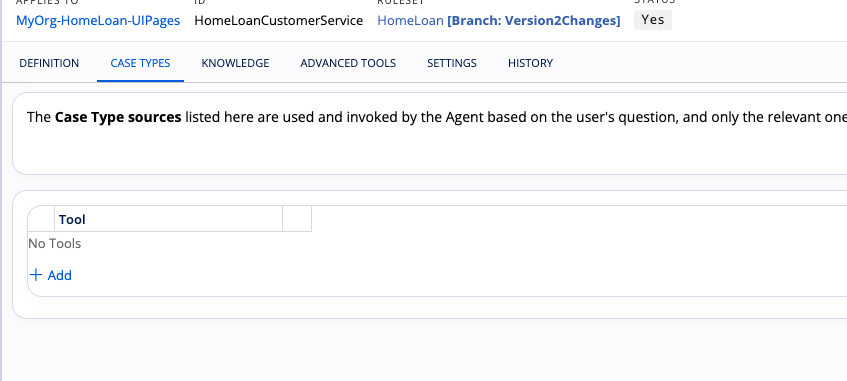
On this agent the list is empty. It reads "No Tools". That is a design decision. This agent supplies context to a customer. It does not start a case, so it has nothing to put here.
Why it matters: an empty tab is a decision. If you build a customer agent that only explains and requests documents, leaving this tab empty is how you keep it from starting work on its own.
Setting 5: Knowledge
This is what the agent can look up. Pega's helper text says the agent retrieves data from these sources whenever the user's question needs it.
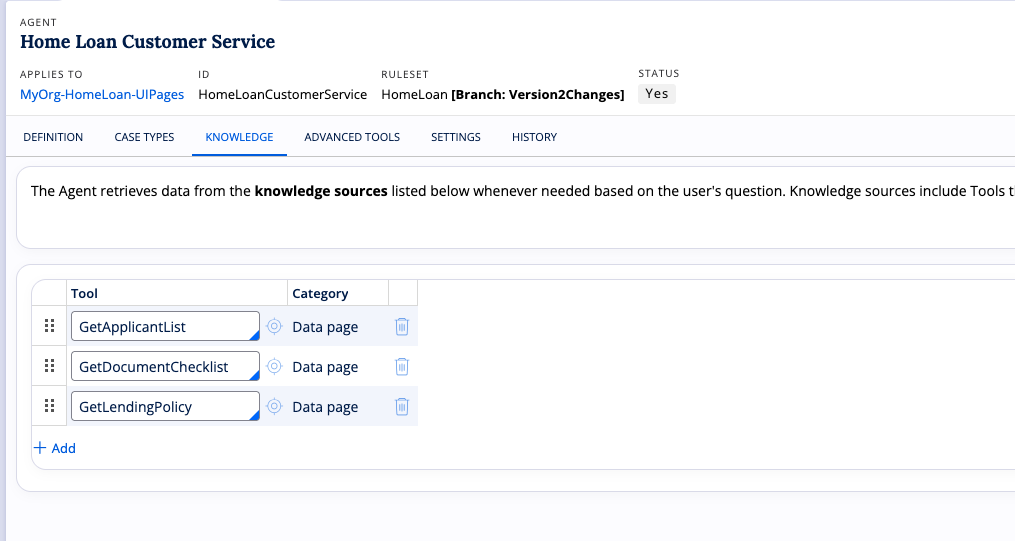
Three tools are attached, all of the category Data page:
| Tool | What it tells the agent |
|---|---|
GetApplicantList |
Who is asking |
GetDocumentChecklist |
What is missing |
GetLendingPolicy |
What the bank requires |
Why it matters: the answer comes from your data, not from the model's memory. If a data page returns the wrong thing, the agent will explain the wrong thing, in calm, plain words.
Setting 6: Advanced tools
This is what the agent can do. Pega's text says action sources call automations and flow actions that perform automated actions in your application.
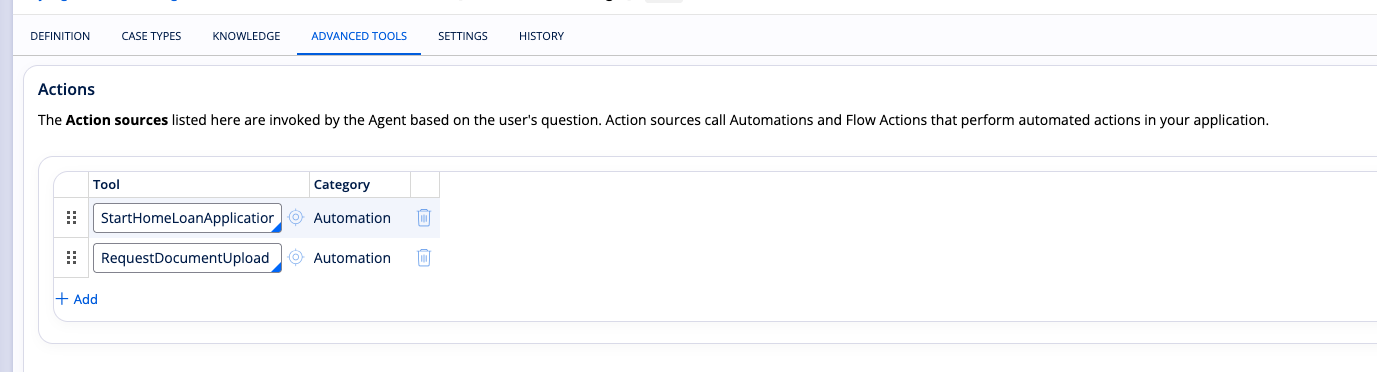
Two automations are attached: RequestDocumentUpload and StartHomeLoanApplication. RequestDocumentUpload sends the upload link. This story does not use StartHomeLoanApplication, and it is worth asking why it is attached at all.
Why it matters: every action you add is something the agent can do at 9pm with nobody watching. Keep the list short. If a customer-facing agent doesn't need to start an application, take that automation off.
Setting 7: The model (Settings tab)
This picks the model.
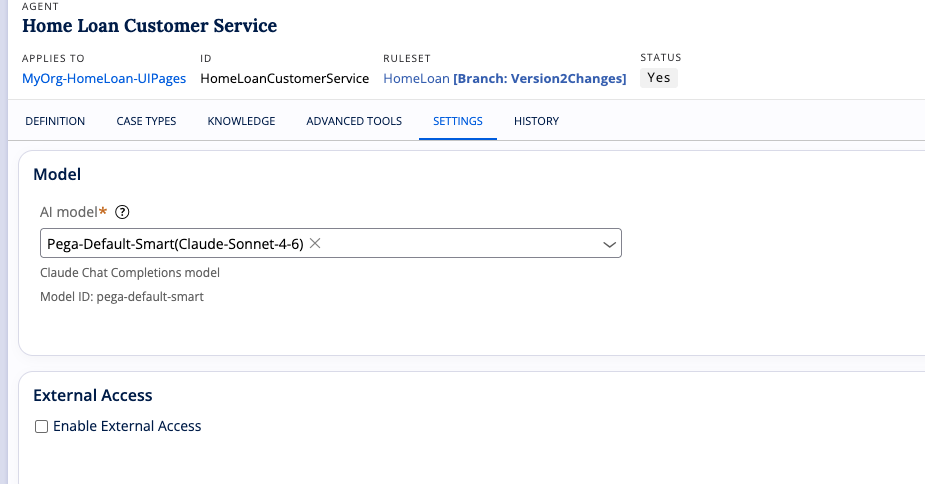
This agent runs on Pega-Default-Smart, which uses Claude Sonnet 4.6 in this environment. External Access is left off.
Why it matters: the model reads every setting above it. Change the model and the same words can behave differently, so test again. The screen doesn't show what External Access opens, so leave it off until you know.
What to check before you build one
- Read the guardrails as a test plan. Turn each rule into a question you try to break. Ask for an approval. Paste a card number. Ask about someone else's application.
- Give every tool a reason. For each data page and automation, write down the question it answers or the action it takes. Remove the rest.
- Decide what the tab left empty means. An empty Case Types tab should be a choice you can explain.
- Keep the human decision with the human. The assessor decides. The agent's job is to get the right document to them.
- Retest on every model change. The words are the same. The behaviour may not be.
What is real and what is invented
The nine days, the payslip, the auction and the 9pm message are invented to tell the story. The agent name, the tabs, the tool names, the model and the screens are real, captured read-only on Pega Trail Community Edition (Infinity '26). Check the labels on your own environment before you copy a setting, because Pega releases change the form. Guardrails and instructions guide a model. They don't replace testing, and they don't replace the bank's own controls.
For how Pega describes this, see Pega Academy: Creating an agent for an Agentic Messaging interface and The Agentic AI design approach.
Takeaway
The agent talks. Its tools act. The assessor decides.
Three settings are words. Two connect the agent to your bank. One is empty on purpose. One picks the model.
More explainers at ssmone.cloud.