A simple explanation of the Monte Carlo Data Set and Data Compose Smart Shape in PEGA
A simple explanation of the Monte Carlo Data Set and Data Compose Smart Shape in PEGA
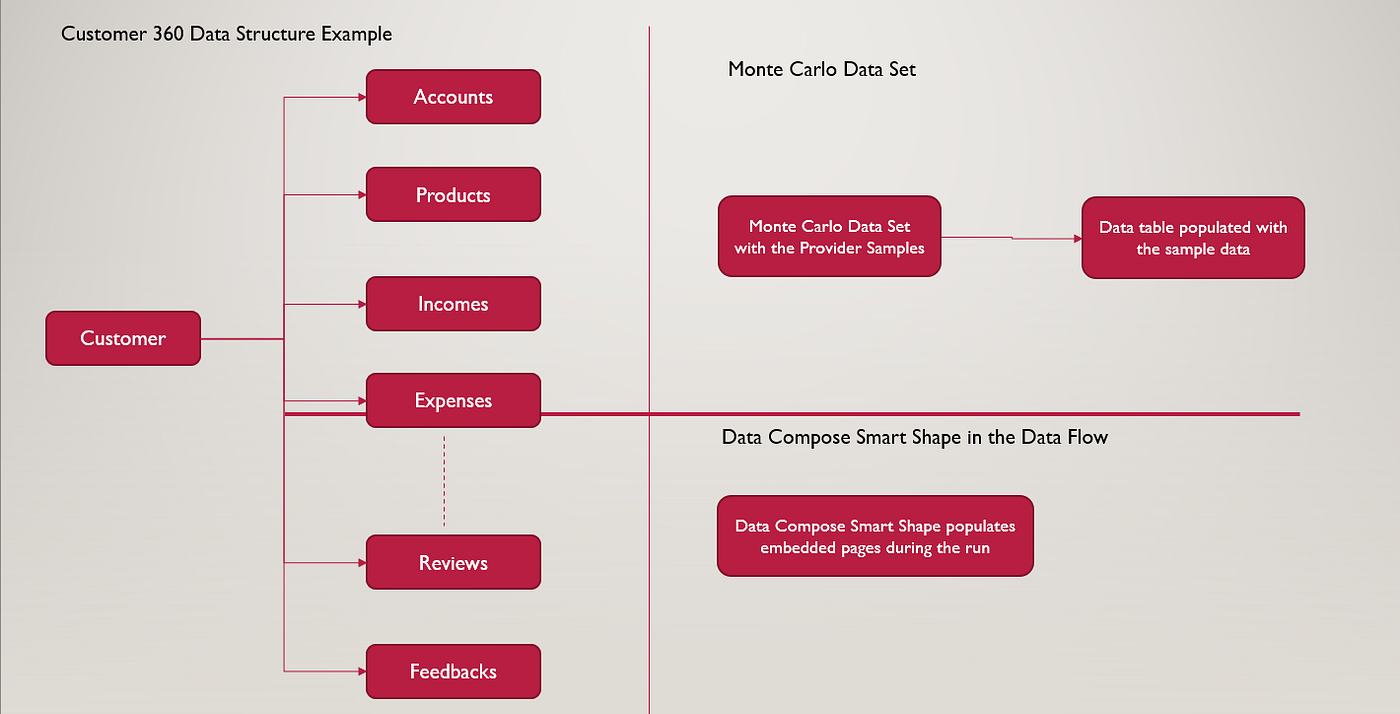
In this post, let’s understand the usage of the Monte Carlo data set and the Data Compose smart shape in the data flow. A customer entity record in an organization will have many sub-entities like accounts, products, incomes, expenses, etc... There will be compliance-related concerns around customer data usage in lower environments. The Monte Carlo data set usage addresses this problem and generates sample data records with the providers like Customer First Name, Last Name, ID, etc…
To display the customer information in a case/ to refer to the customer record as part of processing — we need to combine the data from multiple data sources. The data compose smart shape in a data flow helps to combine the data from various sources to populate the embedded pages during runtime in the customer's primary page.
Let's take a simple example with a scenario, we have the following tables:
- Customer main table — CustID, First Name, Last Name
- Customer employment table — EmpID, CustID, EmployerName
It is a one-to-many relationship. One customer can have many employment records. Let’s say in production, these tables get the data feed from an external system. For lower environments, the organization recommended populating the sample records to test the functionalities. In this scenario, let’s populate these tables using the Monte Carlo data sets.
Step 1: Configure the customer and its employment data tables
Note: It is out of scope from this article's perspective — to create a sample application and the respective data classes.
The two data table classes as below
Customer Table
- Required properties in the data model
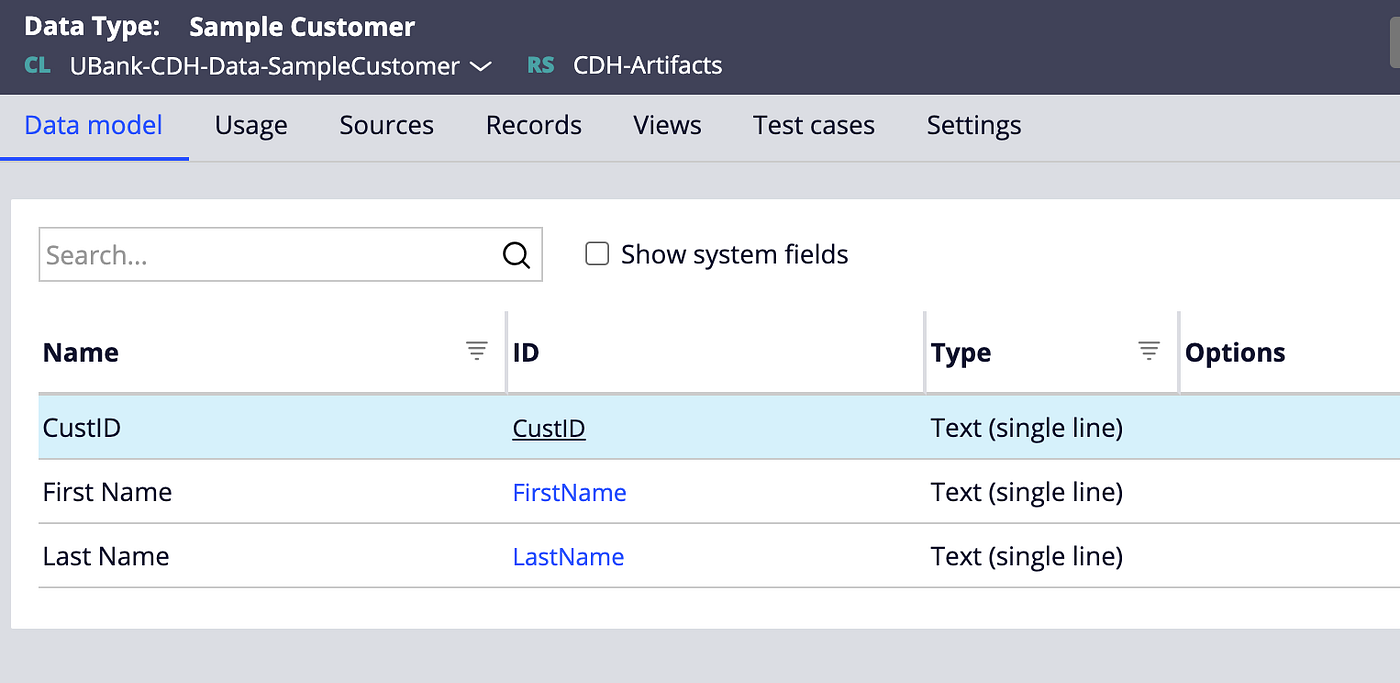
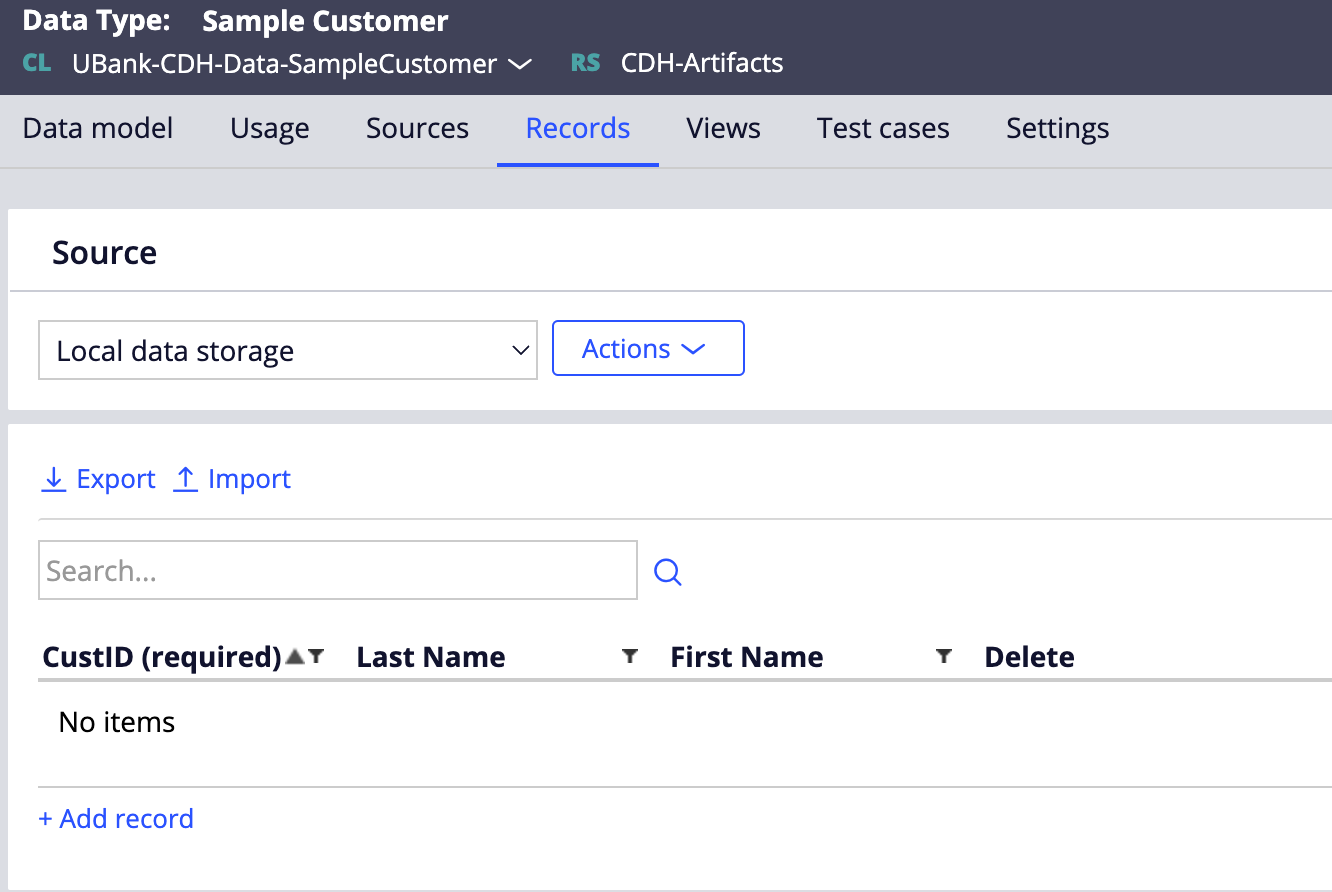
- Database table source with the Cust ID as the primary key
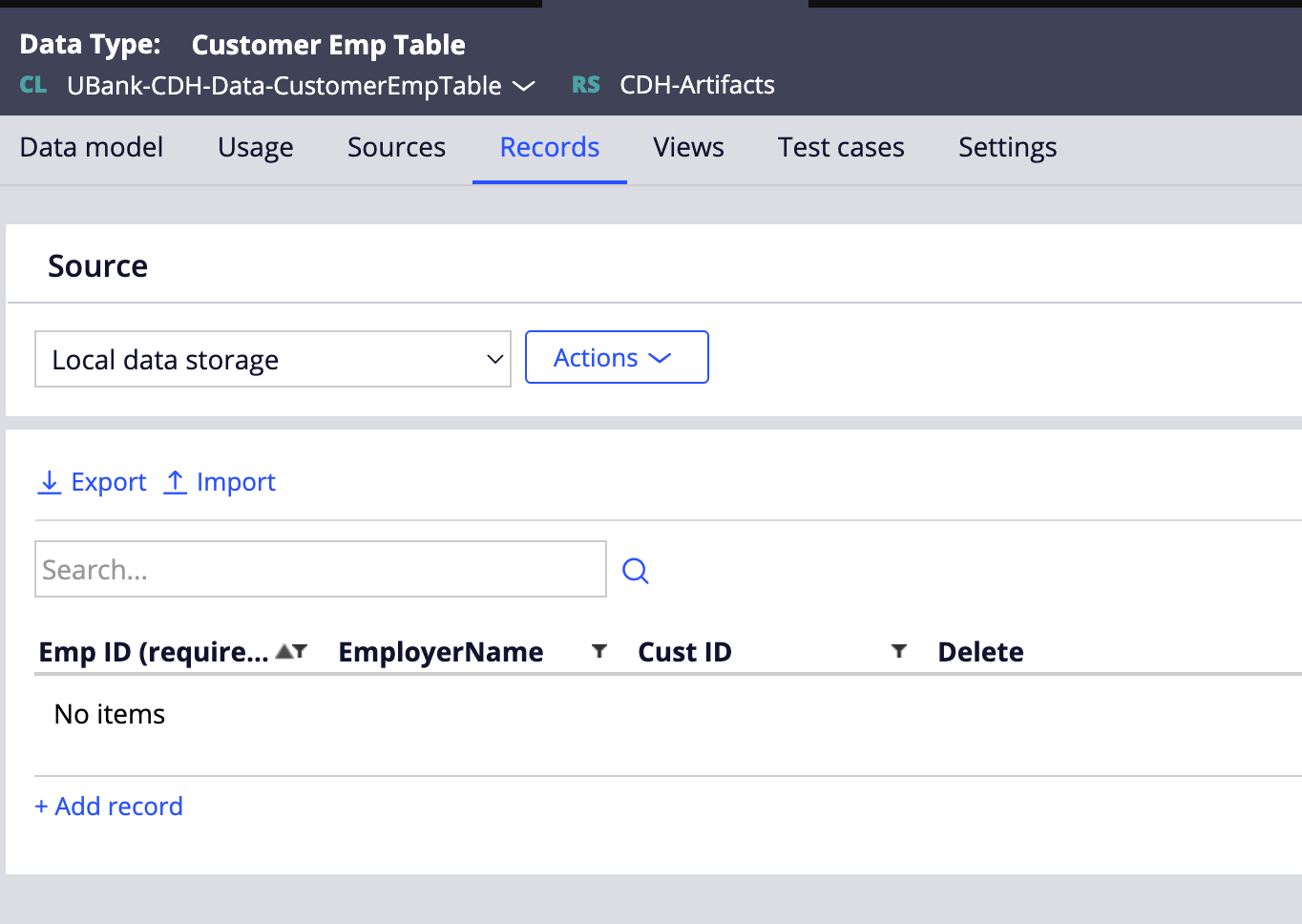
Customer Employment Table
- Required properties in the data model
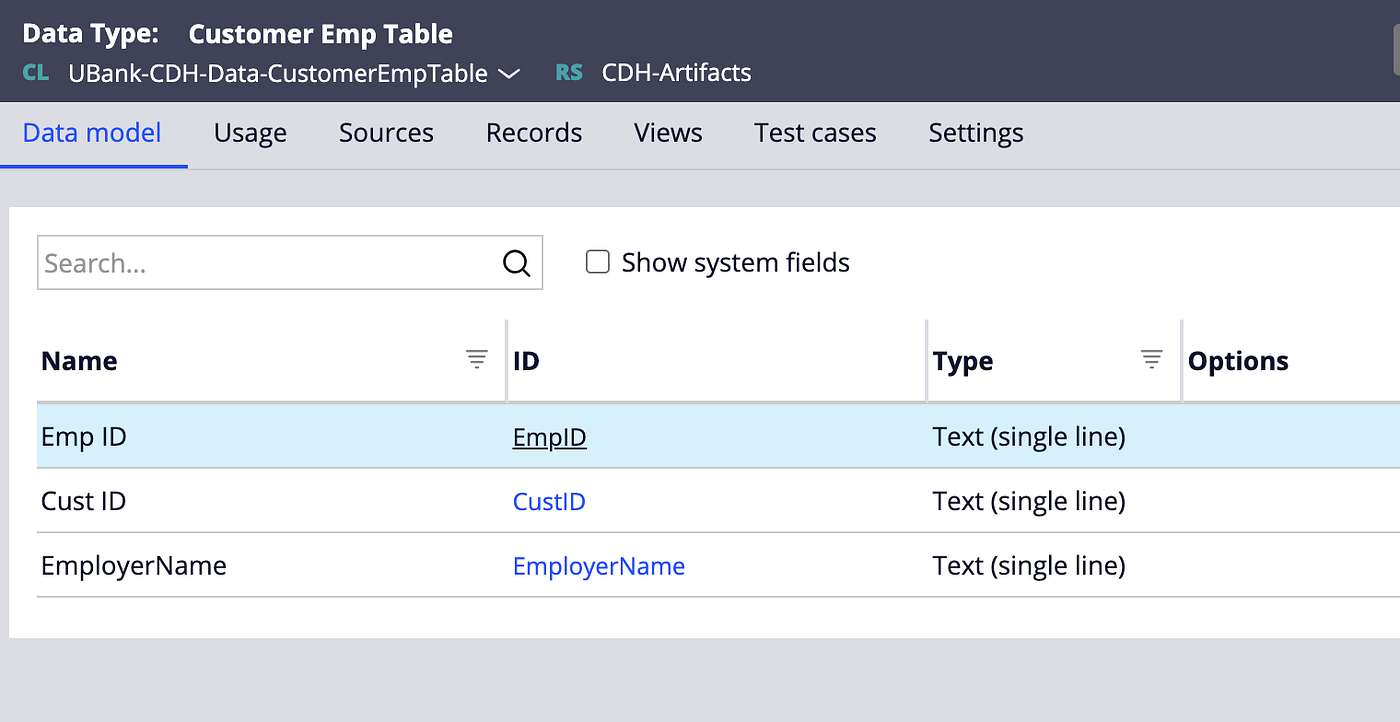
- Database table source with the Emp ID as the primary key
Step 2: Configure the Monte Carlo Data Set
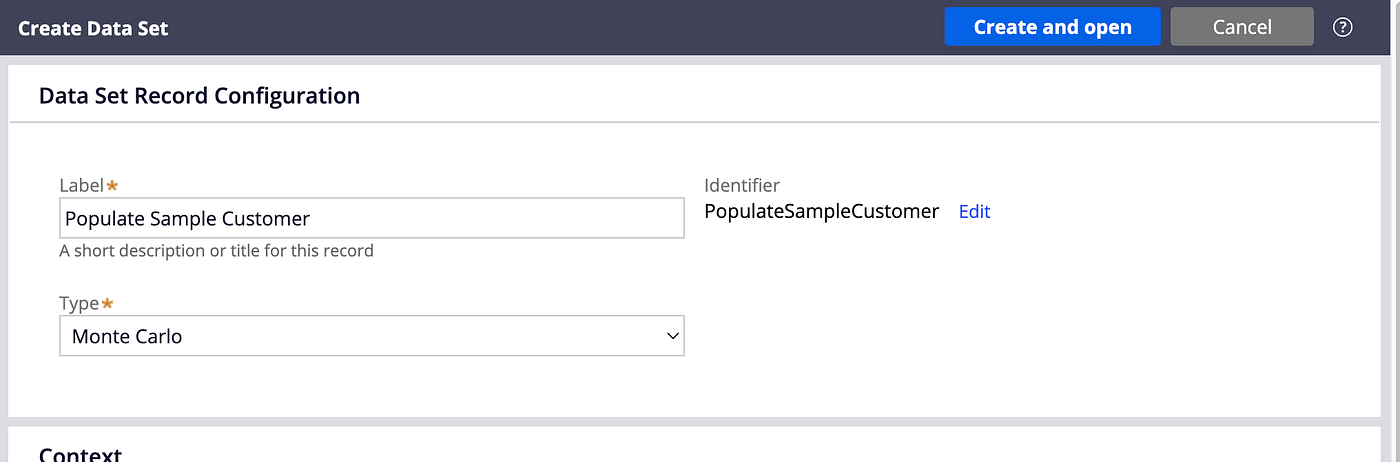
- Create a dataset instance in the sample customer data class— with Monte Carlo as type
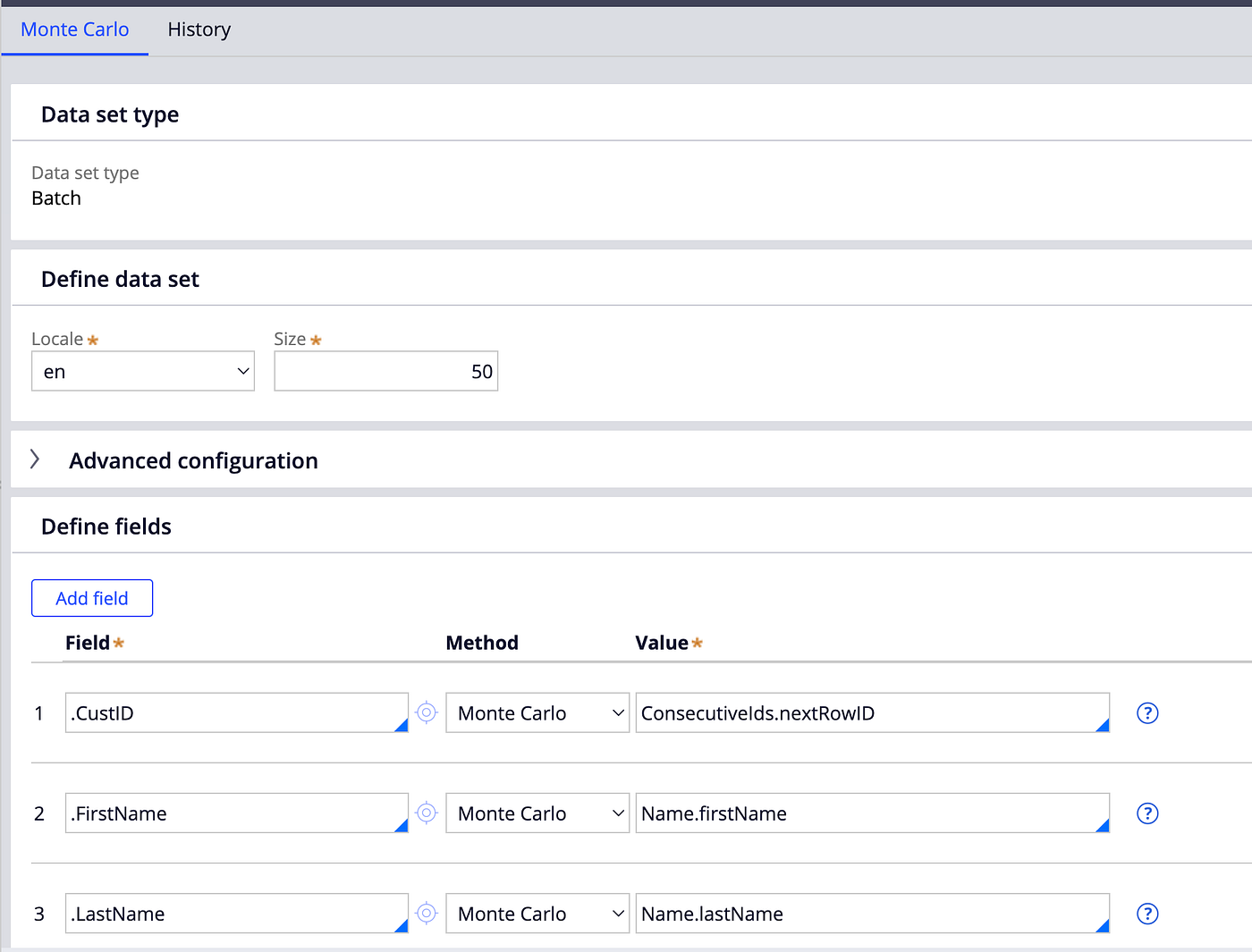
- For each field “Method” — “Monte Carlo” and value is nothing but the provider. Example, Row ID, First Name, Last Name etc…
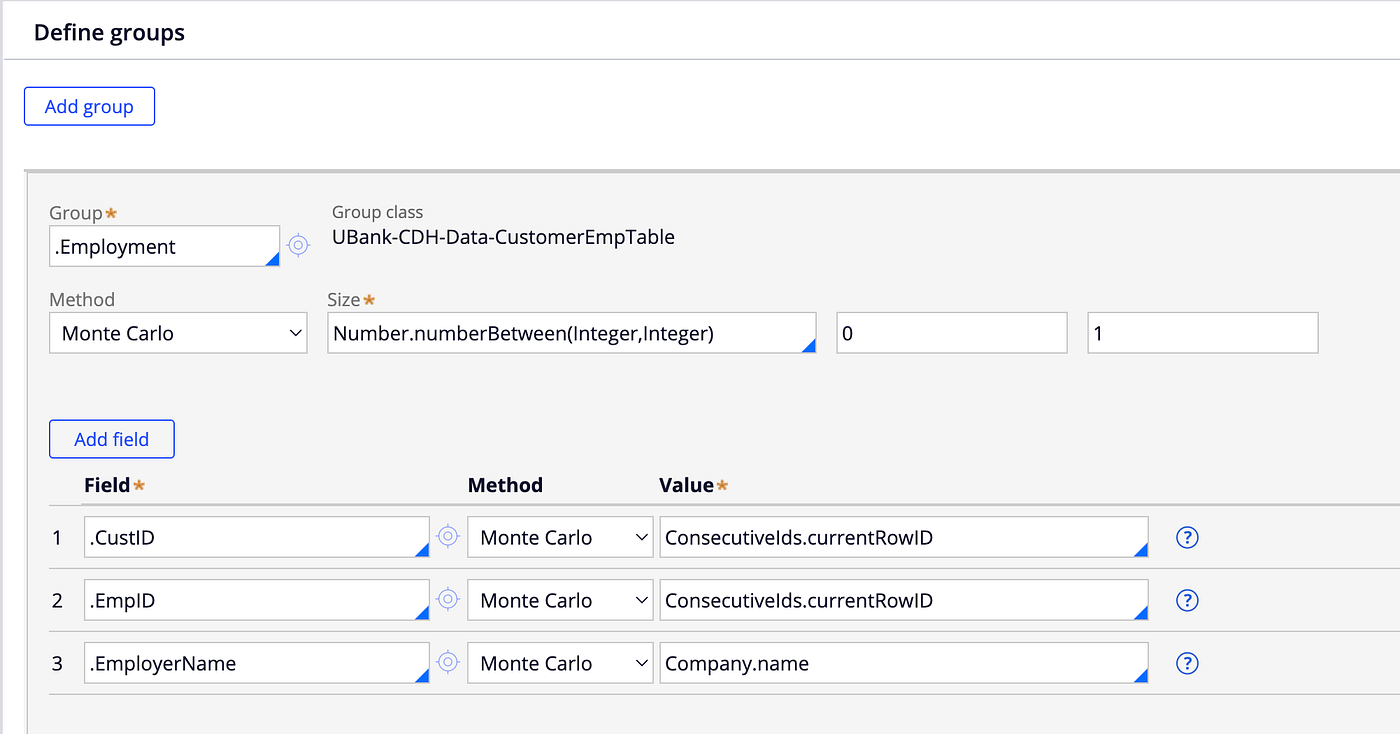
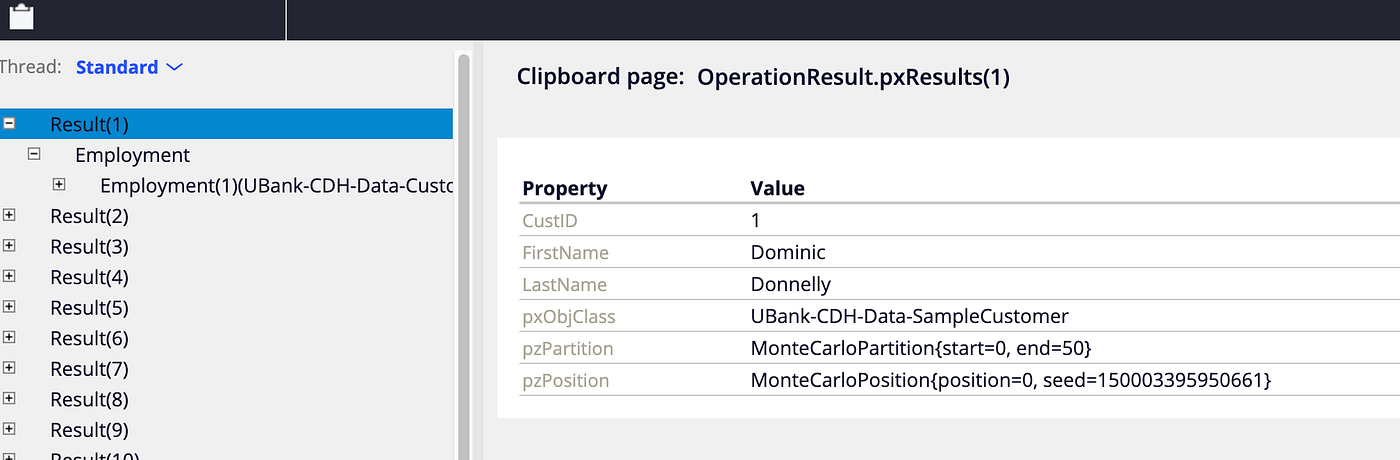
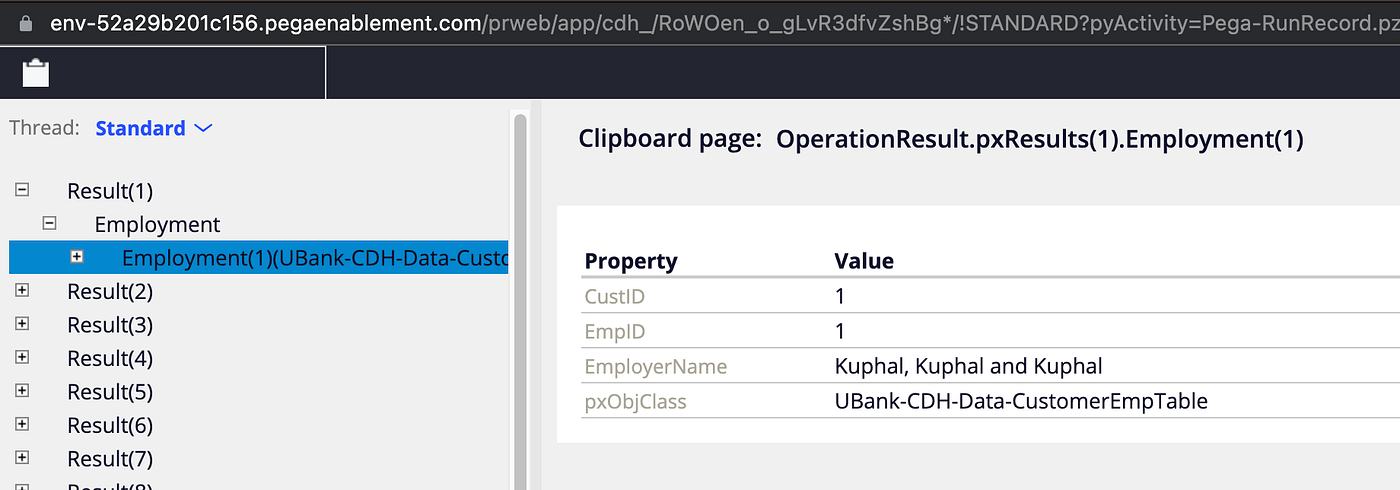
Note: Using the Monte Carlo data set — we can populate the embedded pages as groups. In this scenario, we are generating the sample customer record and respective employment record.
Monte Carlo data set execution
- Run the data set and select the operation “Browse” to see the results.
Step 3: Create a dataflow to populate the customer and employment data tables
Now that the Monte Carlo Data Set is ready, it is time to populate the customer and respective employment data tables.
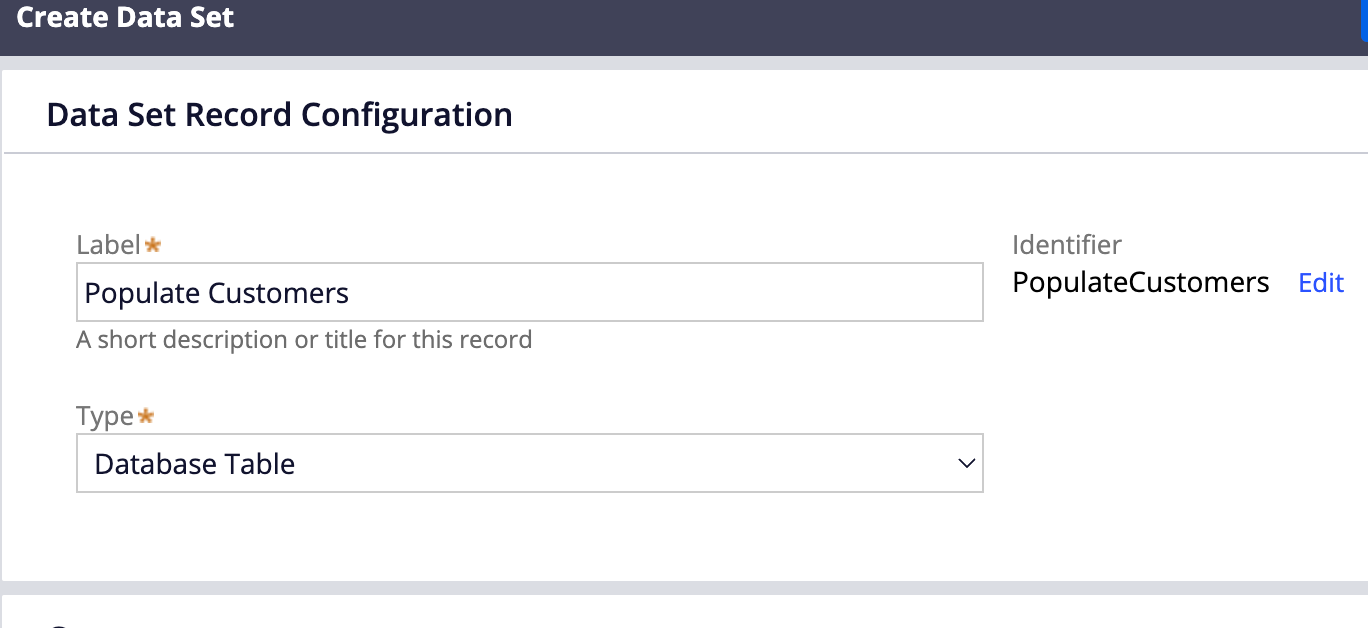
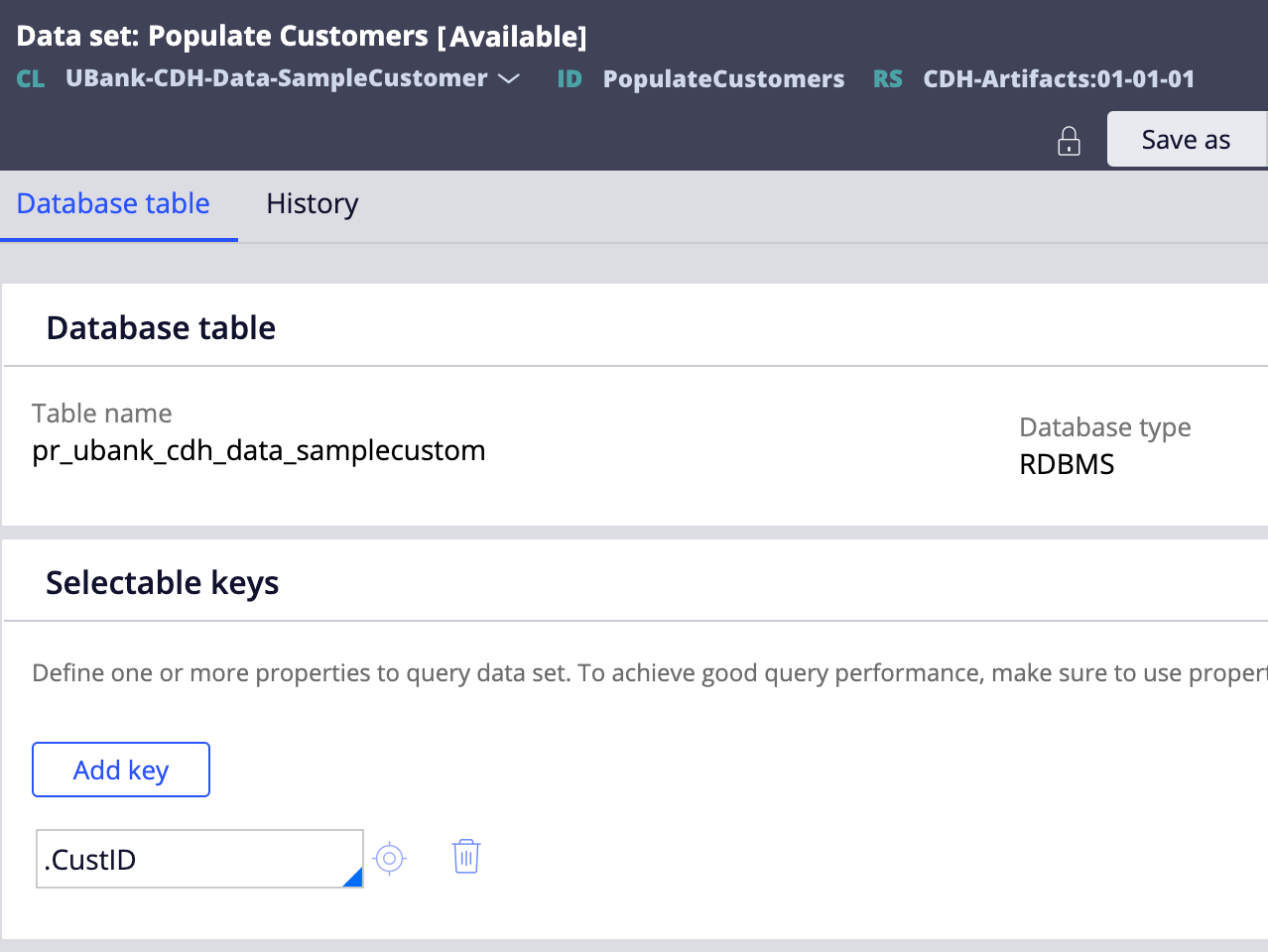
- Create a customer data set with a database table as the type
- Create a customer employment data set with a database table as the type
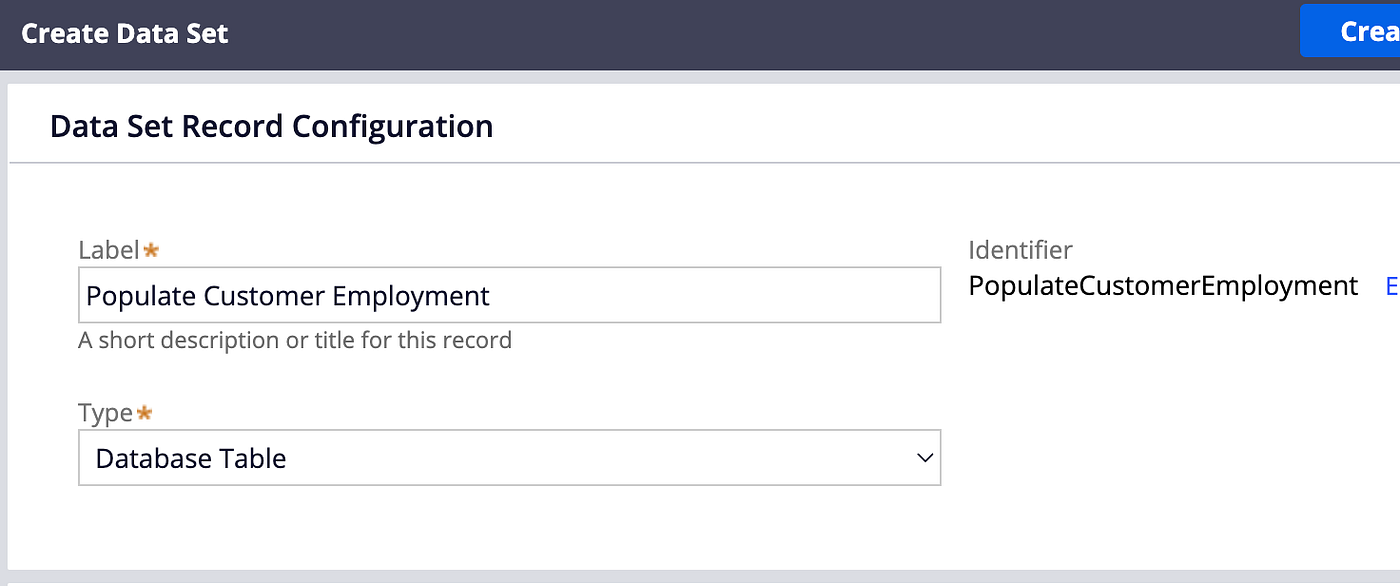
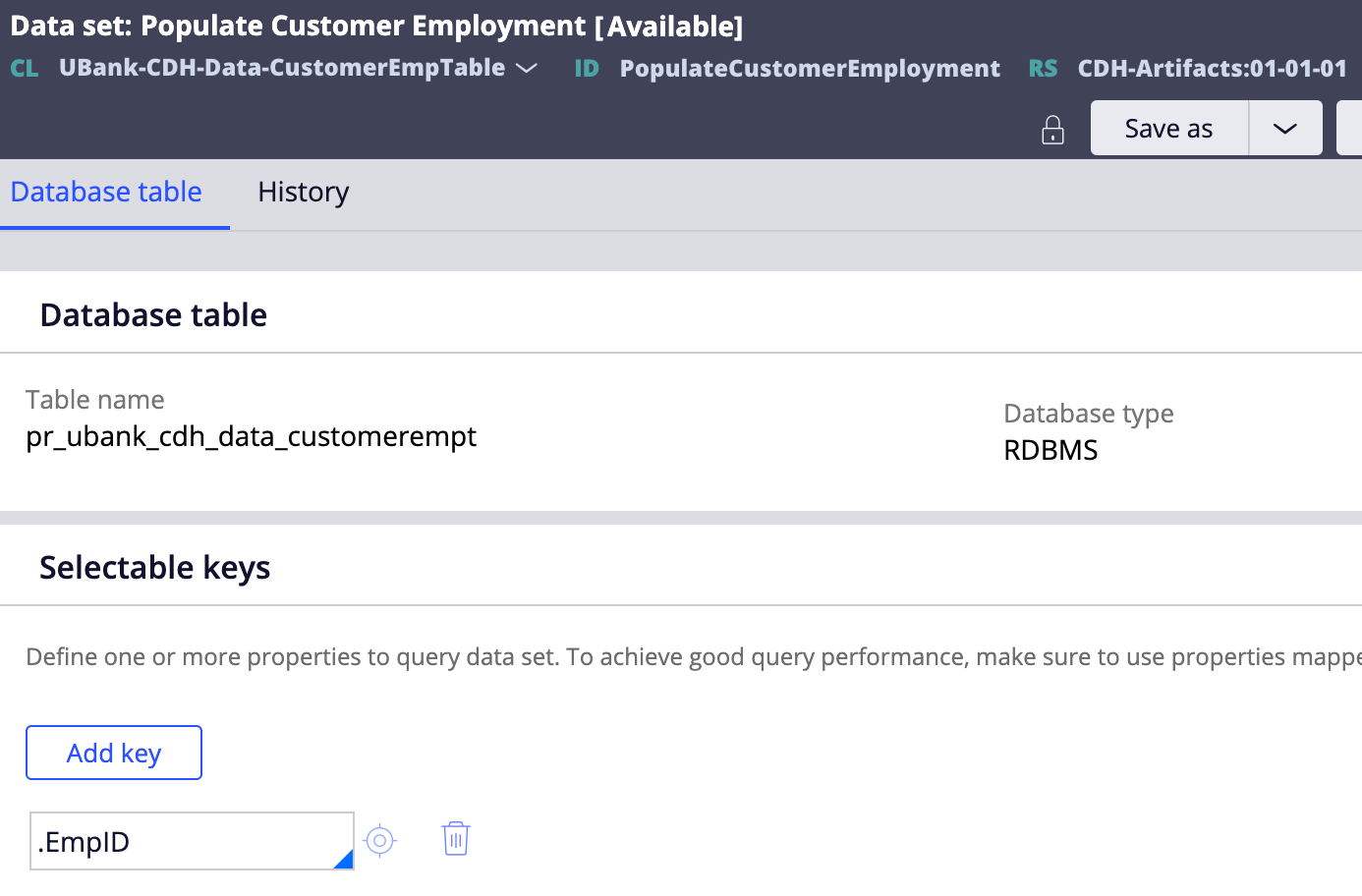
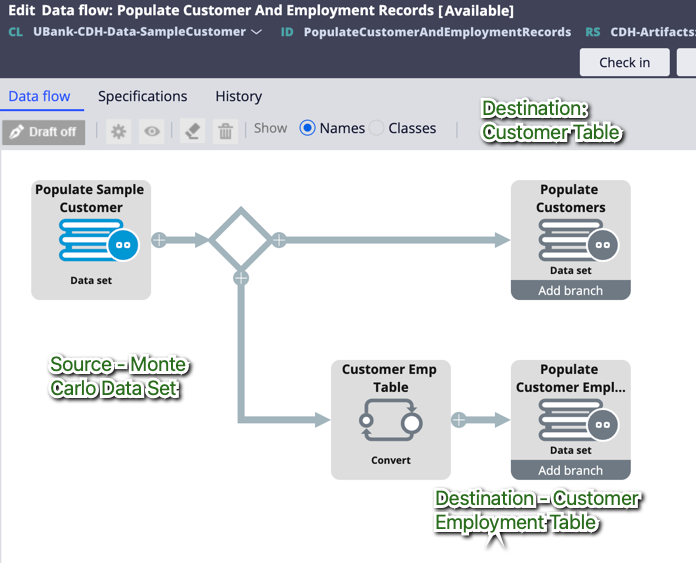
- Create a data flow to populate these database table data sets from the Monte Carlo data set as the source and respective destinations as below
Note: Click on Add Branch on a destination shape to branch out to multiple outputs
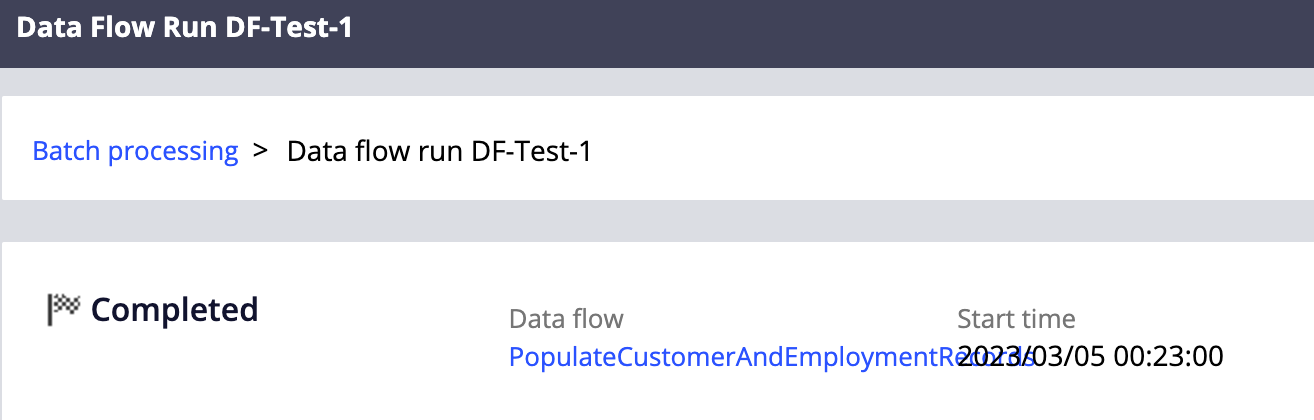
Execute the data flow to verify the sample records in the respective tables
- Open the customer table in the data designer
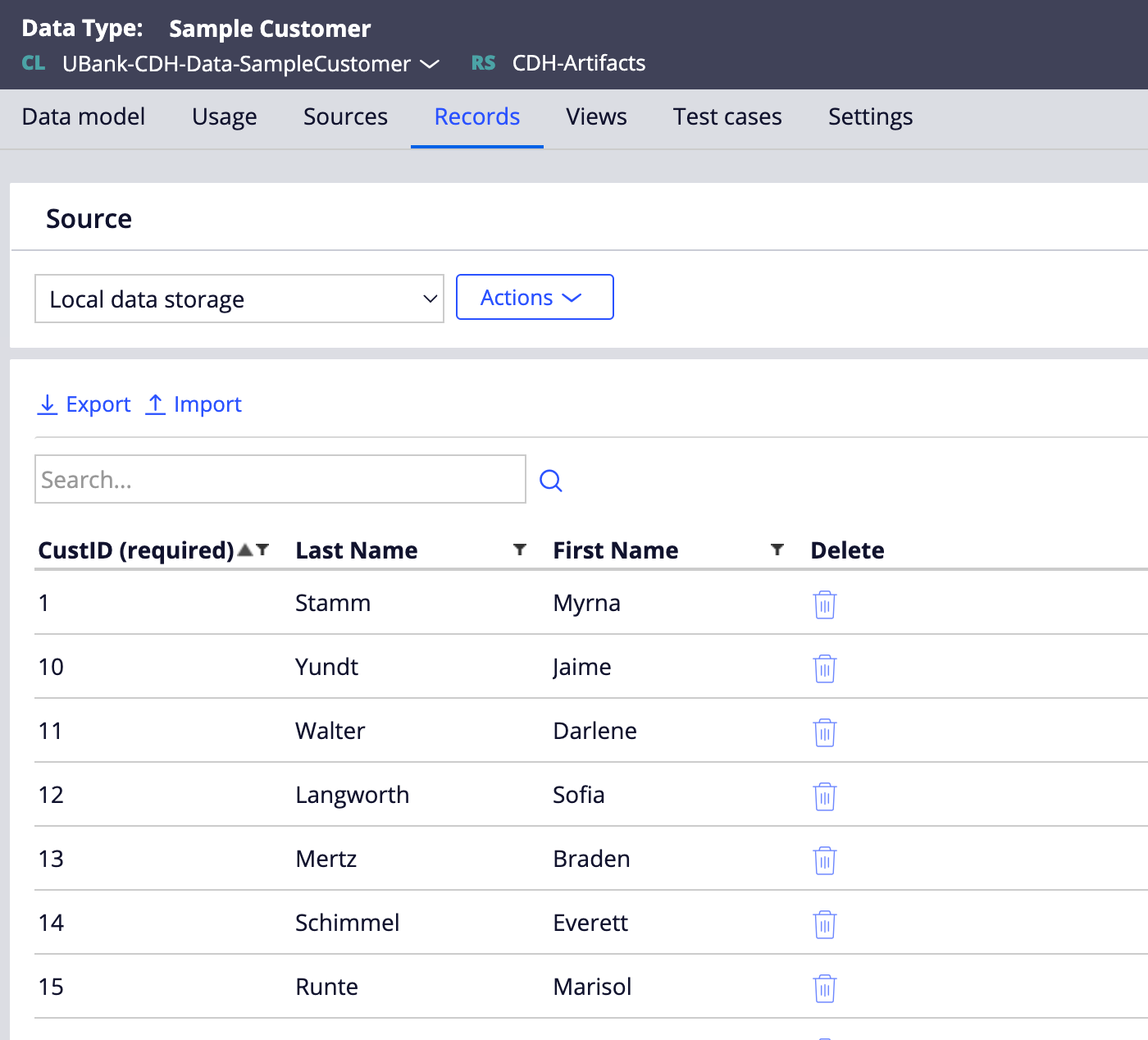
- Open the customer employment table in the data designer
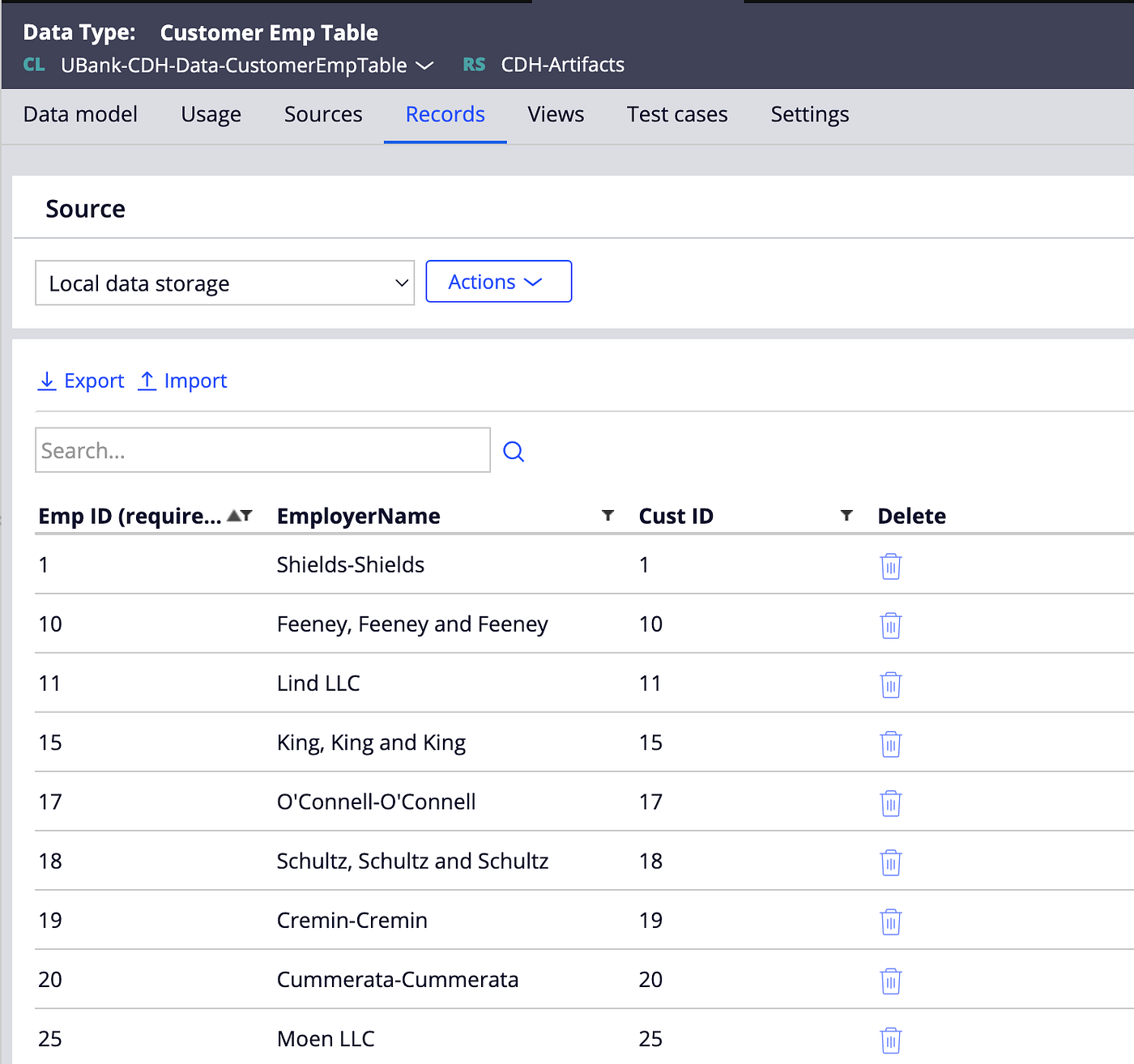
Step 4: Use Data Compose smart shape in a data flow to combine the data
Now that the data tables are populated with the sample records. We can combine this data during the runtime in a data flow using the Data Compose Smart Shape.
- Create a data flow to combine the data into the embedded page
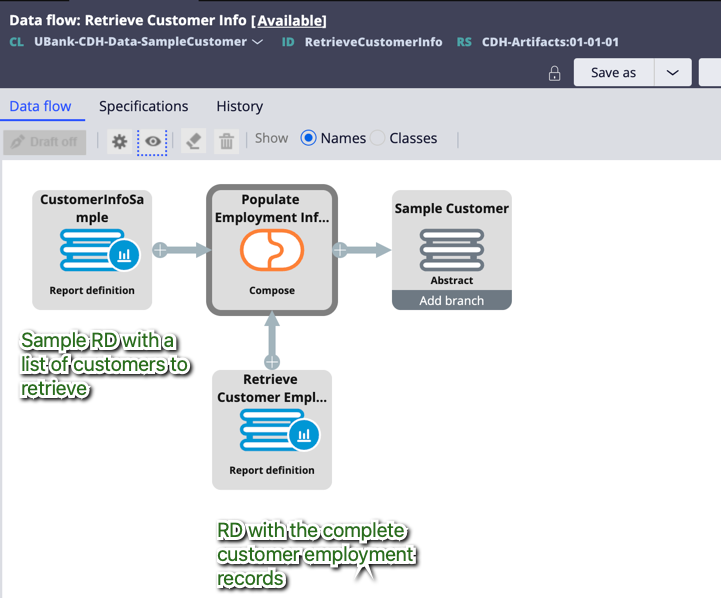
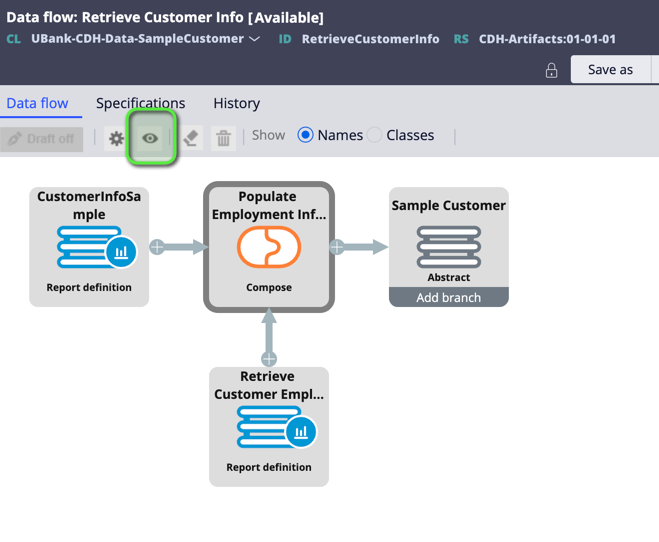
Configuration of the Data Compose smart shape — where cust id in both tables matches populates the employment page list embedded property.
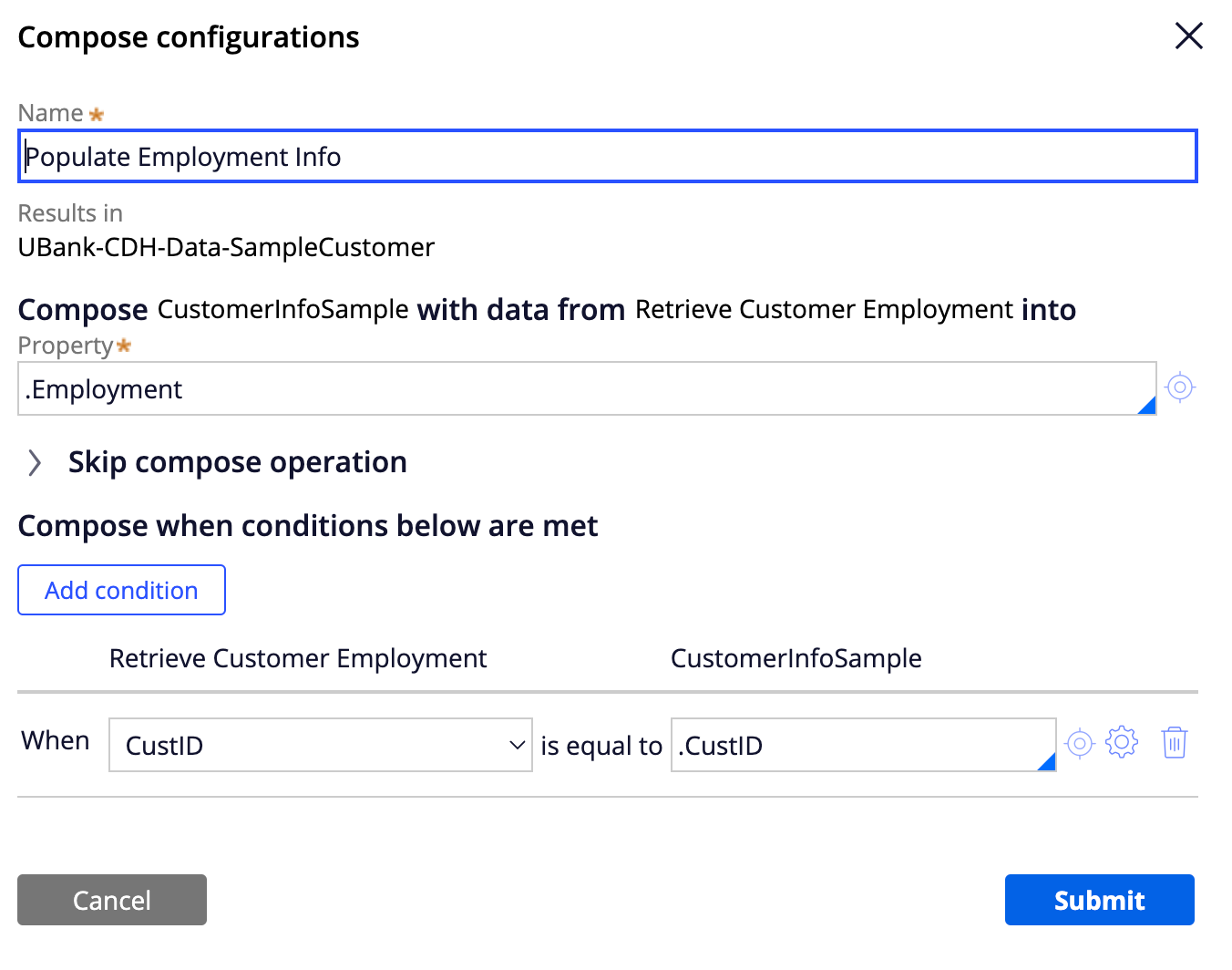
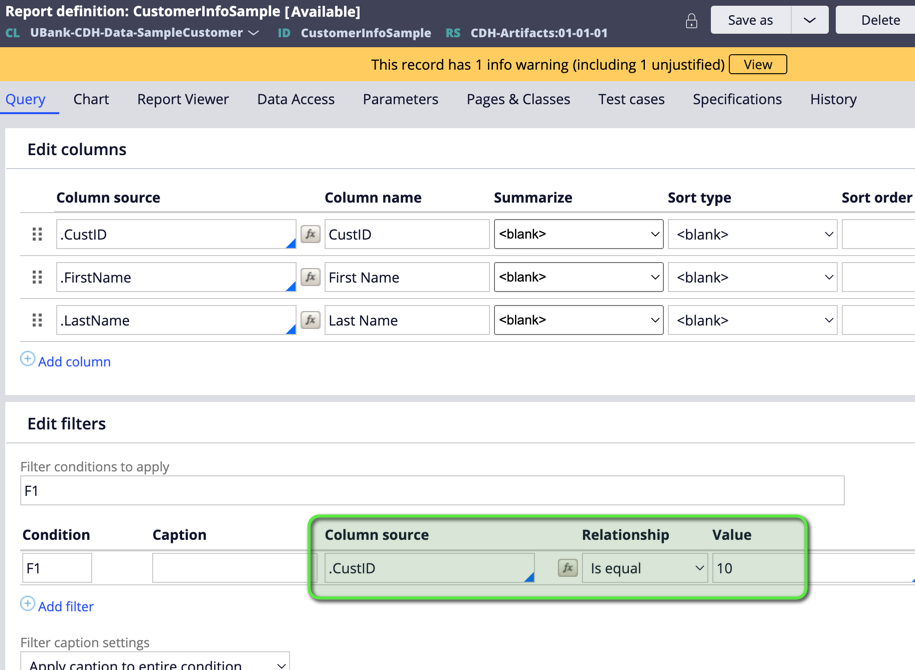
For now — let's retrieve only the customer info of the cust id “10”
Select the Data Compose smart shape and click on the eye icon highlighted to see the result
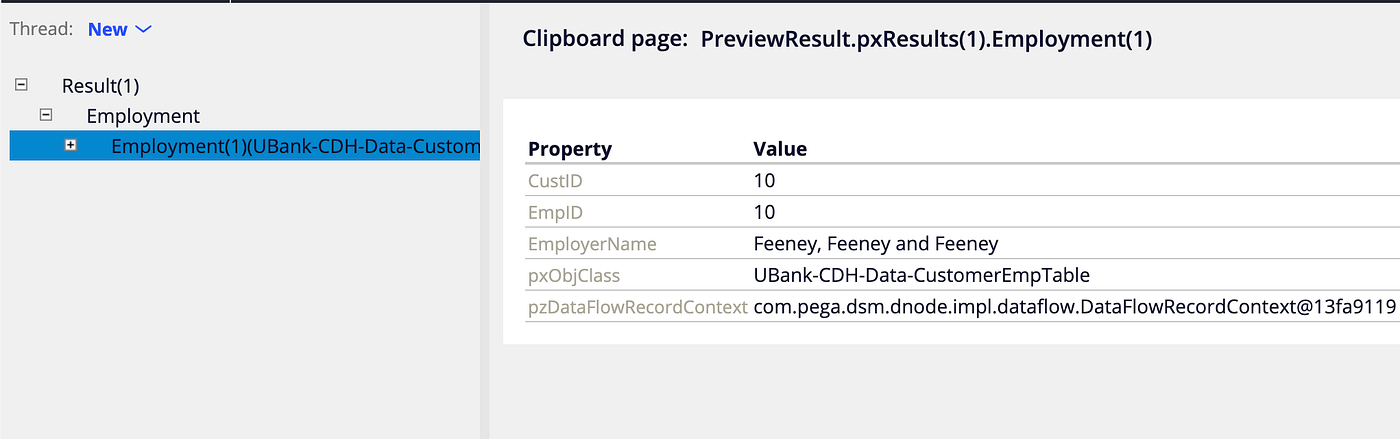
See the results — Customer record populated with the embedded page list well.
Hurrayyyyyyy — Congratulations :) Now you successfully understood the usage of the Monte Carlo Data Set and the usage of the Data Compose Smart Shape in PEGA. Happy Learning :)