A simple event-driven architecture explanation using PEGA App and AWS Kinesis data stream
A simple event-driven architecture explanation using PEGA App and AWS Kinesis data stream
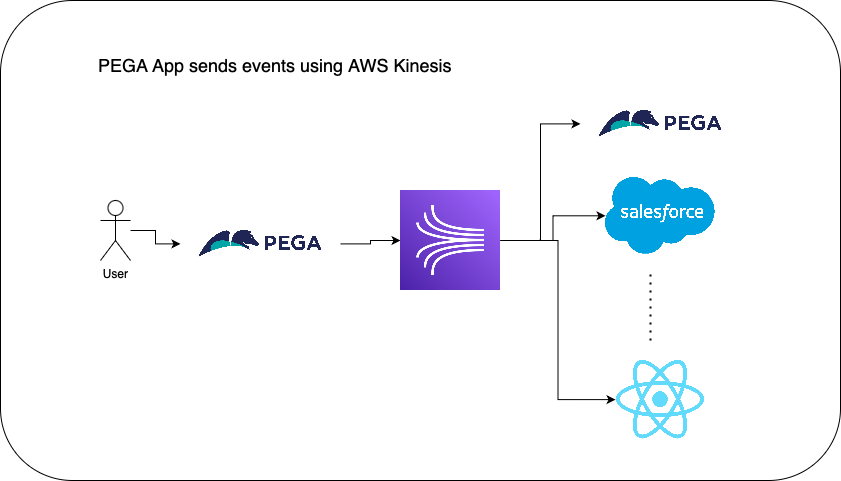
In this post, let's understand a simple event-driven architecture example between a PEGA App and the AWS Kinesis data stream. Nowadays, where we have a plethora of applications within an organisation. Communication between the apps plays a vital role in architectural design. The conventional way of having APIs communication has its pros and cons. The disadvantages include — an API can become obsolete, and tightly coupled with the consumer and the service provider. As the applications grow, it is harder to maintain a huge set of APIs.
The event-driven architecture addresses this problem statement. Applications publish the event messages and other sets of applications who are interested subscribe to the events. It is up to the receiving system to process the event message. Event message data is extensible, fast, and reliant, and it is loosely coupled communication between the apps. Practical real-time examples include — Youtube, Facebook, Twitter, Google Maps, and GMail apps that generate the Live Location, and recent activity events to help the marketing systems to generate user-specific custom ads.
It is a publish and subscribe pattern similar to JMS — Java Messaging Service. But, with the latest event-streaming platforms like Apache Kafka, AWS Kinesis, Google Pub/Sub etc… These tools have advantages like an API to publish/consume the events, and also come with data streaming/processing and analytical capabilities as services.
Let’s take a simple PEGA App generating an event to the AWS Kinesis data stream in this example. Usecase, whenever a user creates a customer complaint case in the system the PEGA App sends an event to the AWS Kinesis. Take an assumption, this event triggers a notification in Salesforce App and the front-end web user portal. These Apps consume/subscribe to these events via AWS Kinesis.
Step 1: Create an AWS Kinesis Data Stream
Sign up / Login into the AWS Console.
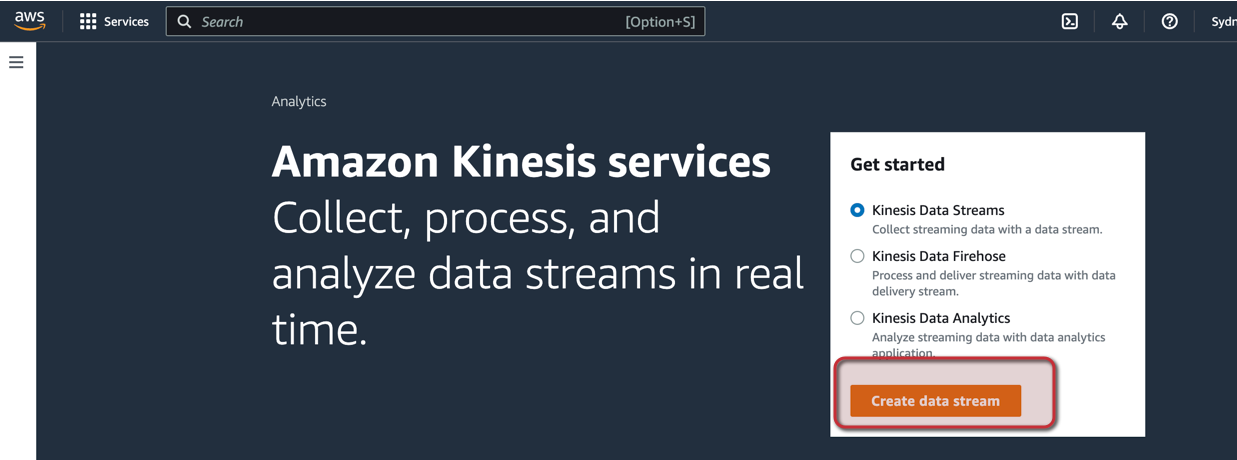
Search for the AWS Kinesis Service and click “Create data stream”.
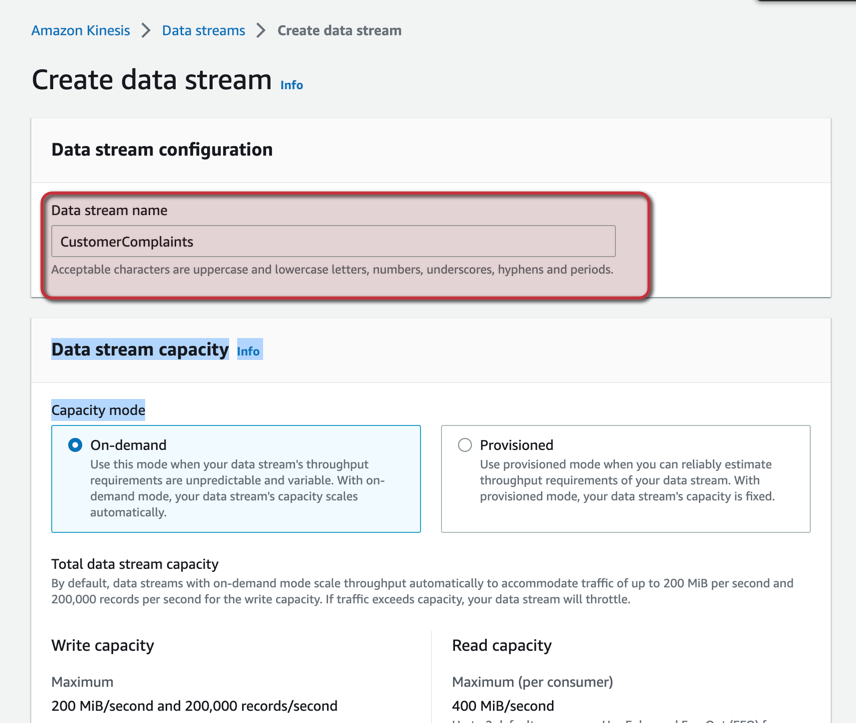
Enter the data stream name and click “Create data stream”.
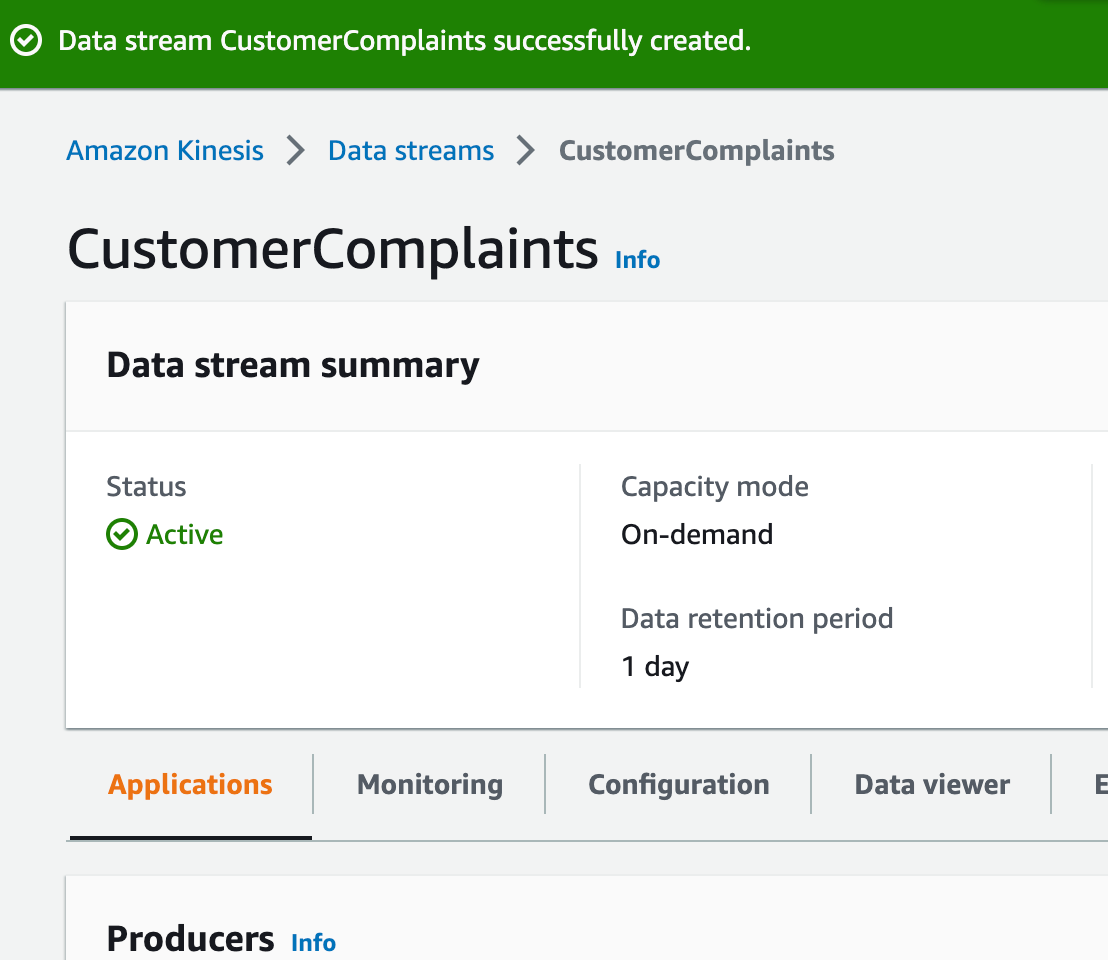
Wait for the service initialization to complete and then verify the status is Active.
Step 2: Create an IAM User to access Kinesis Data Stream
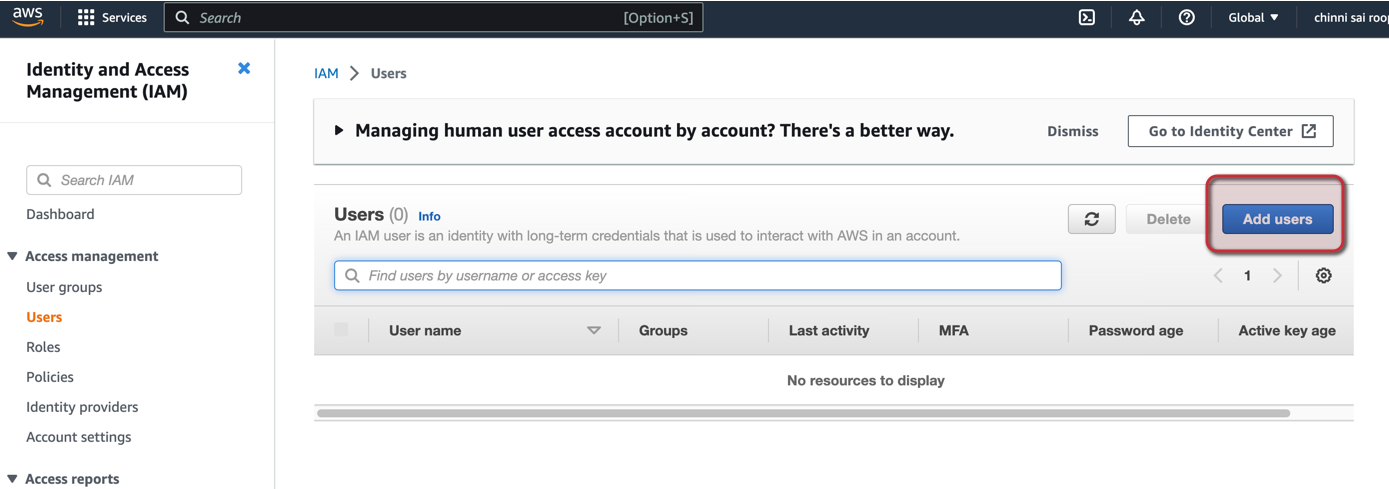
Navigate to the AWS IAM Service and click “Add users”.
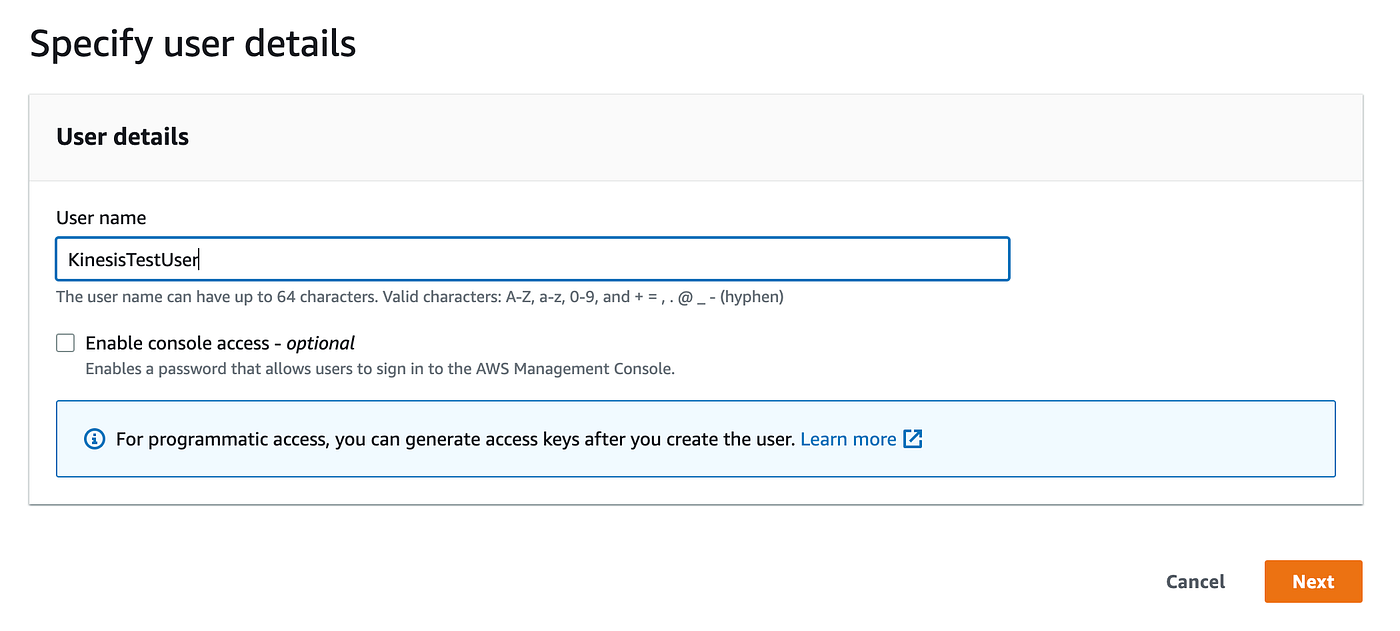
Provide a user name and click “Next”.
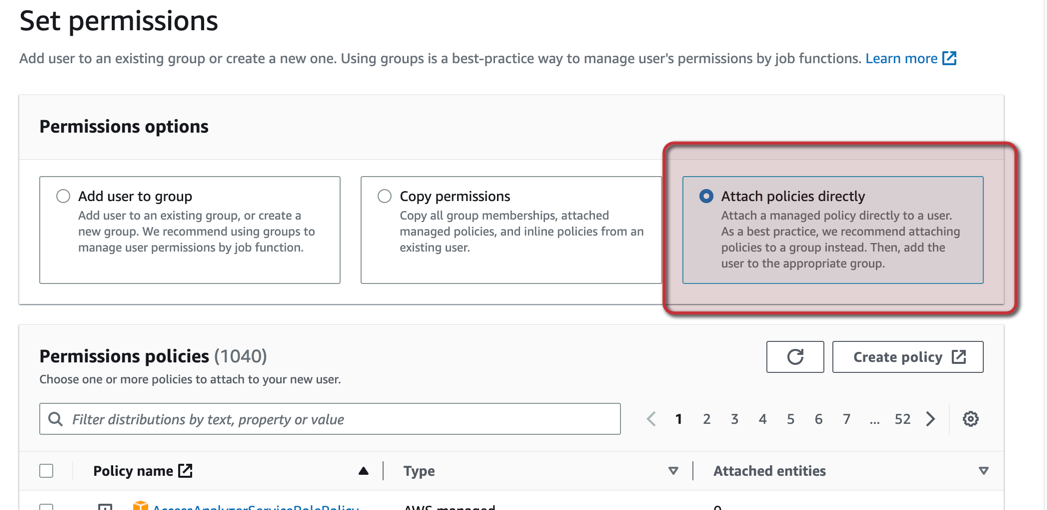
Select the “Attach policies directly” option.
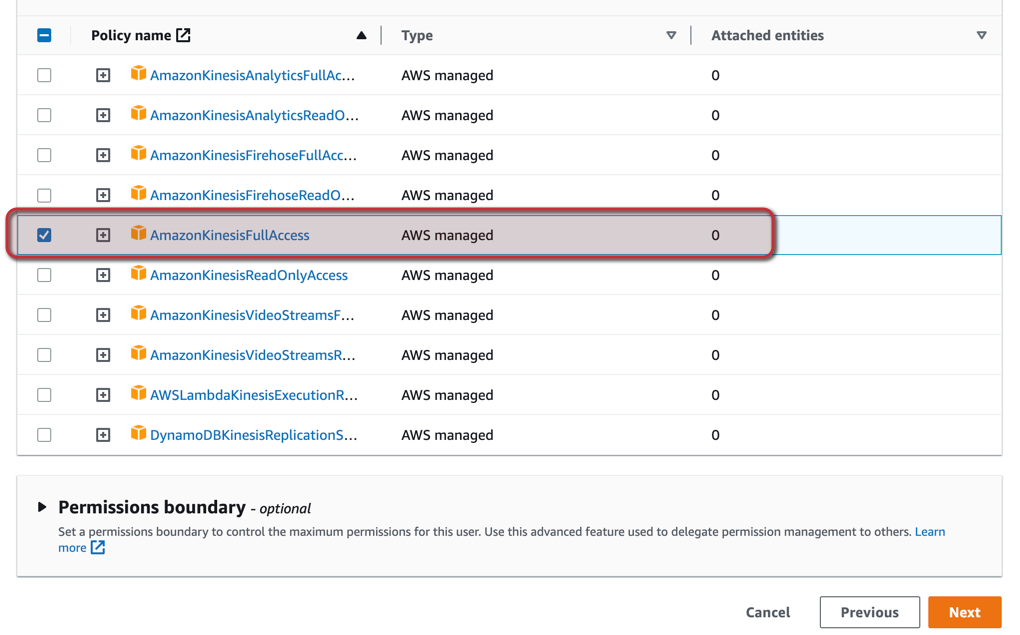
Select the “AmazonKinesisFullAccess” policy and click “Next”.
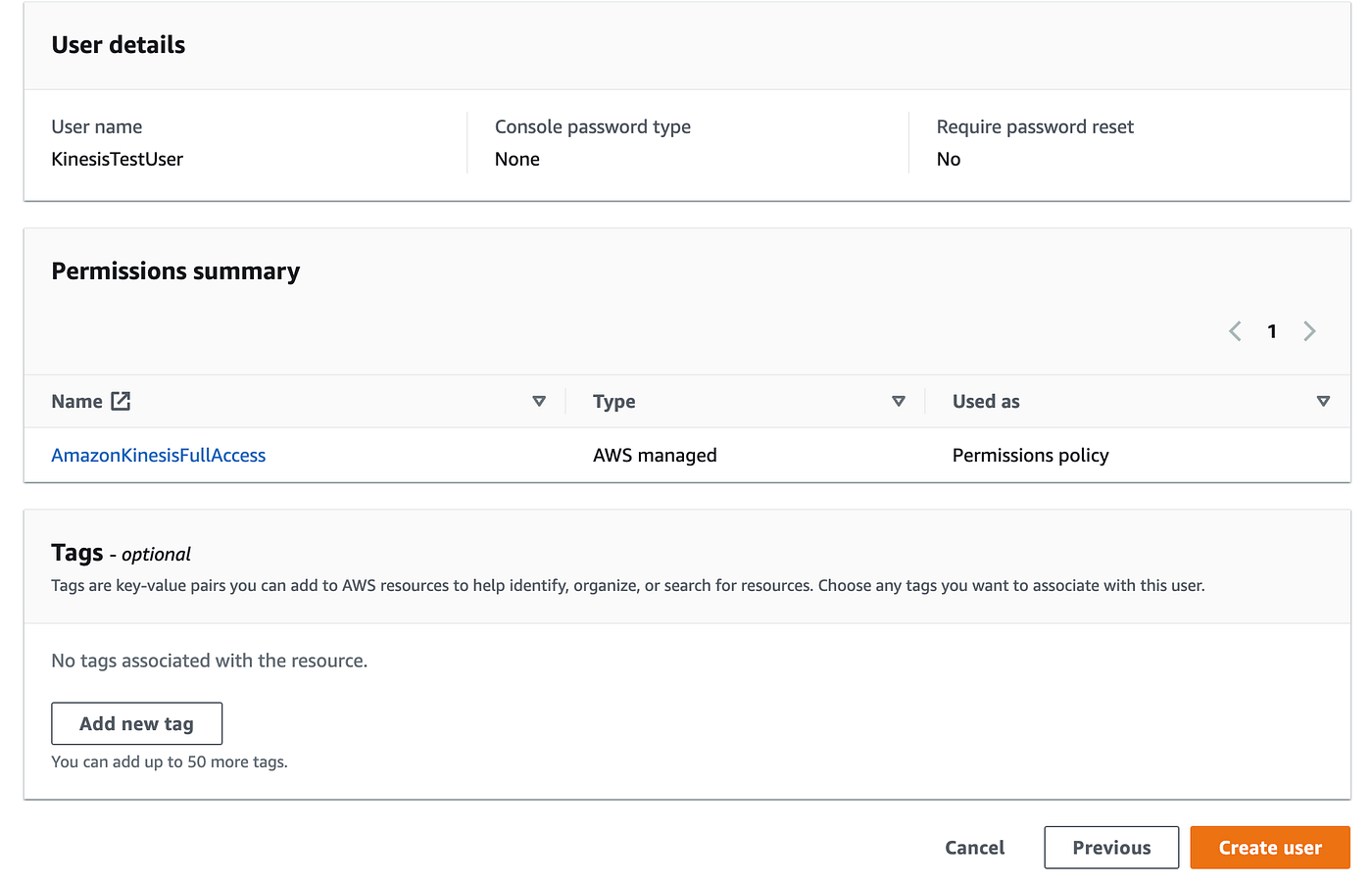
Verify the user details and permissions provided and then click “Create user”.
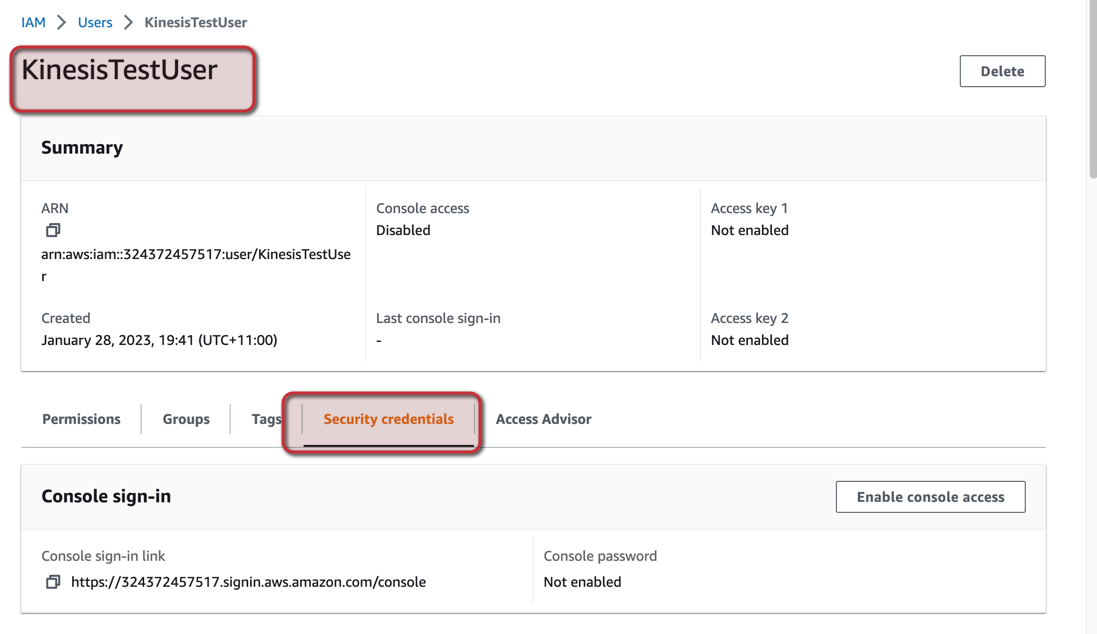
Open the respective user and select the “Security credentials” tab.
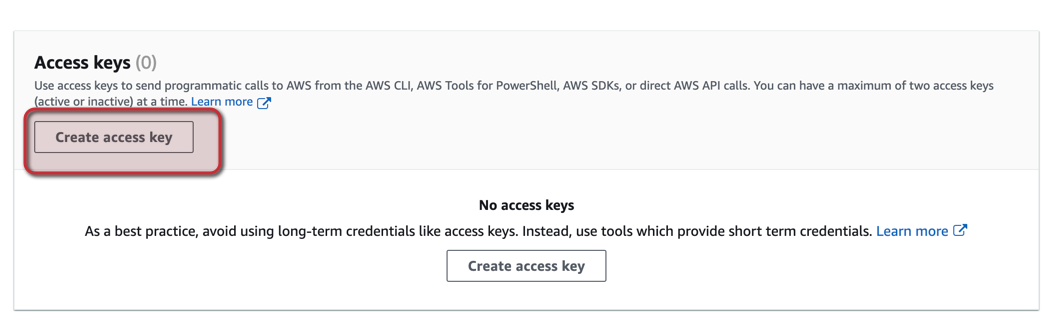
Go to the access key section and select “Create access key”.
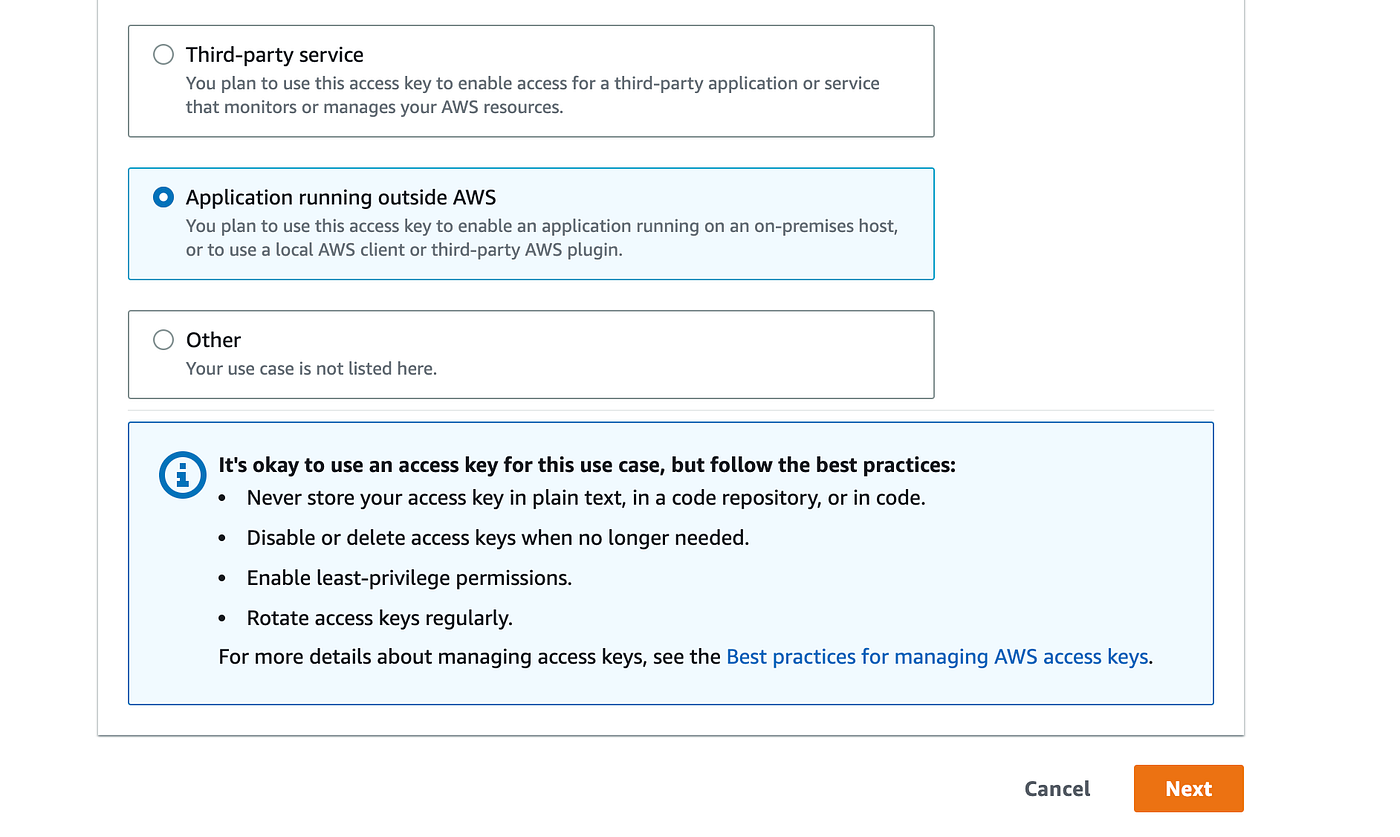
Select the “Application running outside AWS” option.
Go to the last step to see the Access Key and Secret access key. Download the key details in the CSV file.
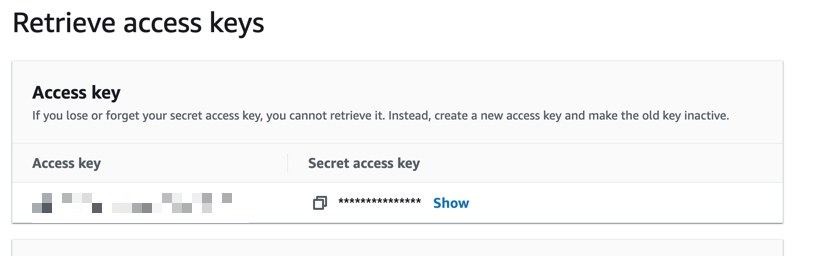
Step 3: Configure the AWS Kinesis Data Set in the PEGA App
Note: Developing a simple PEGA App with a Customer Complaint case type is out of the scope of this article.
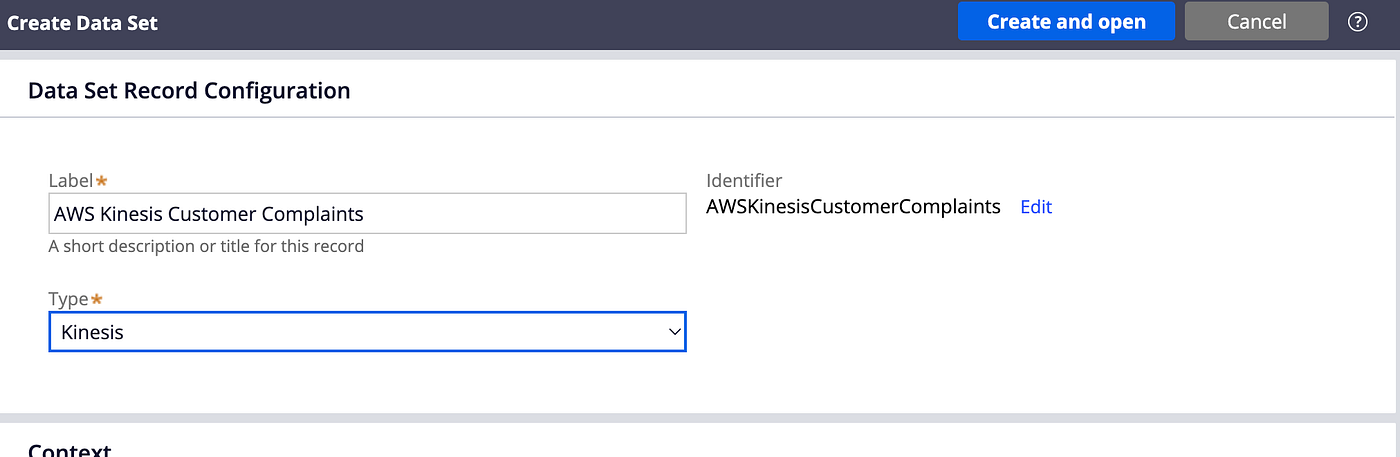
Create the Data Set and select the data set type as “Kinesis” as below.
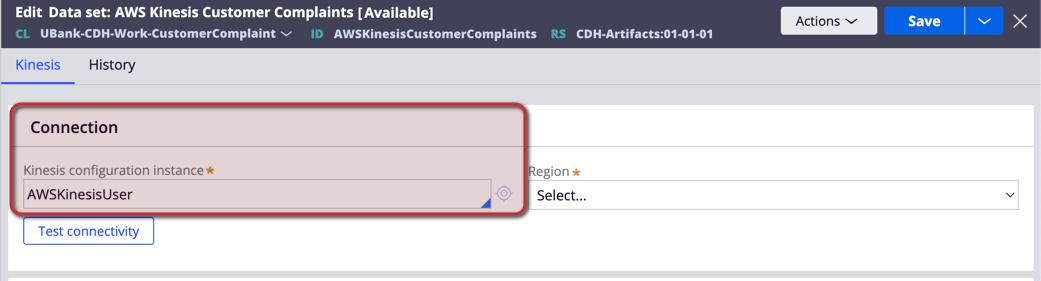
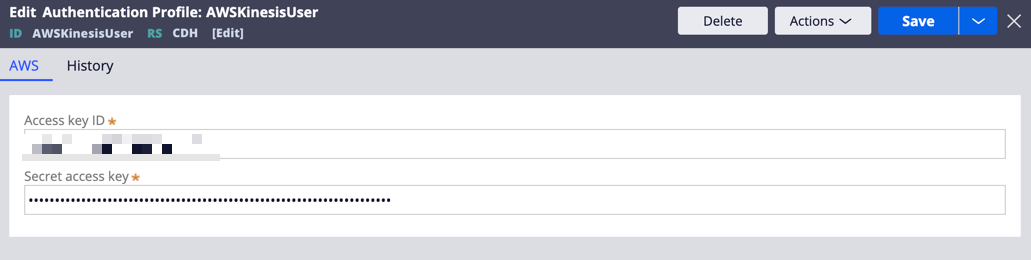
Enter the AWSKinesisUser — Kinesis configuration instance to provide Access Key and Secret Key.
Select the Authentication Profile type as “Amazon Web Services(AWS)”
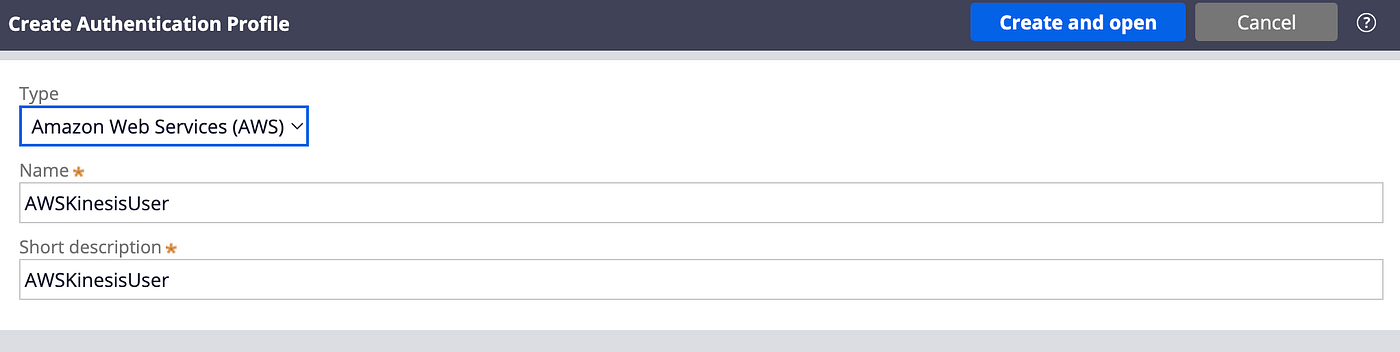
Enter the Access Key and the Secret Key that you downloaded.
Select the Region in the data set instance and click “Test connectivity” to verify the “Connection established” status. Once the connection is established then select the Kinesis Stream from the dropdown as below.
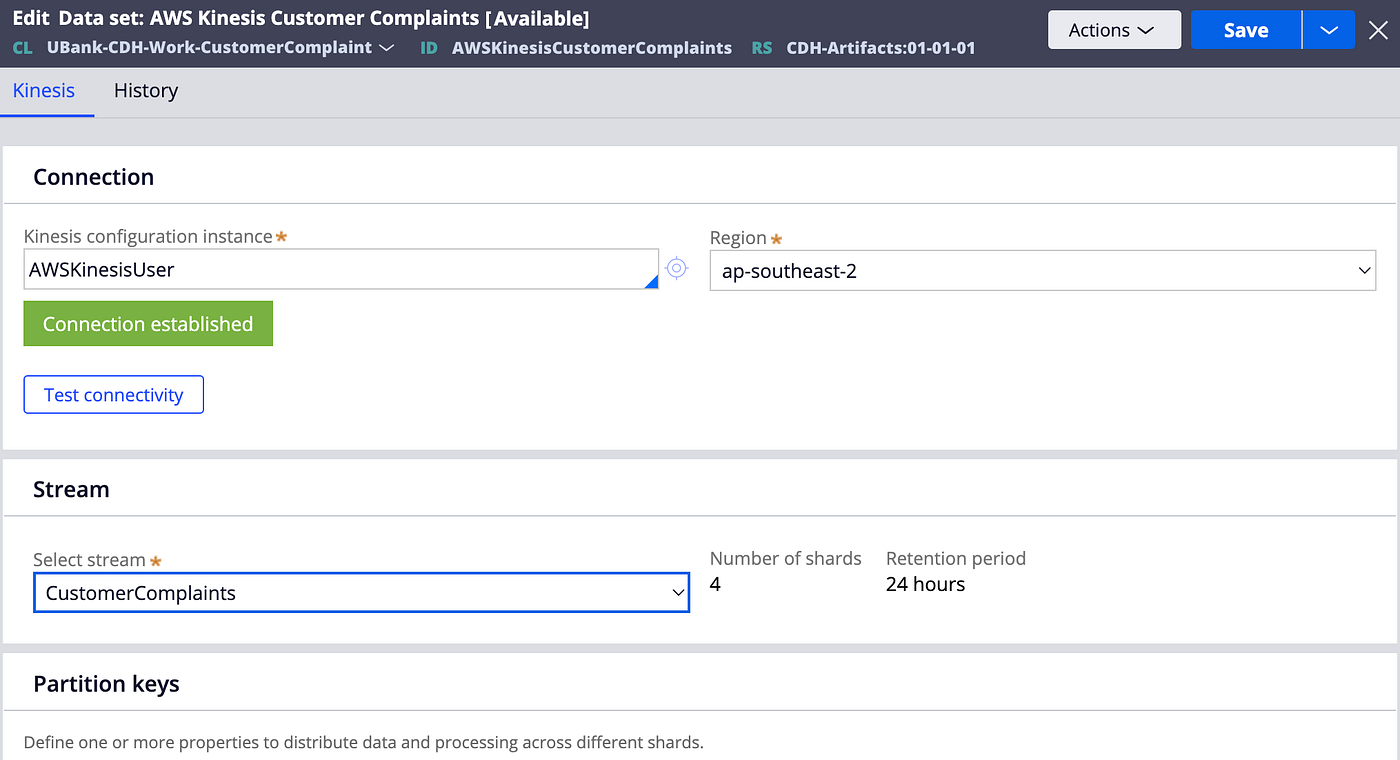
Enter the partition key as “Sentiment” for now.
Step 4: Configure Event Push via Dataset to the AWS Kinesis Data Stream
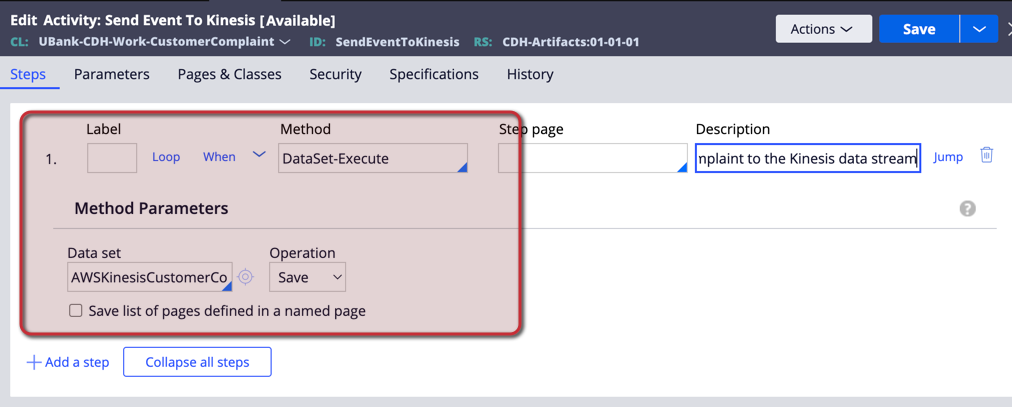
Now that the AWS Kinesis data set is configured. Send an event using the DataSet-Execute method as part of the case processing.
Create a utility to invoke the DataSet-Execute method as below.
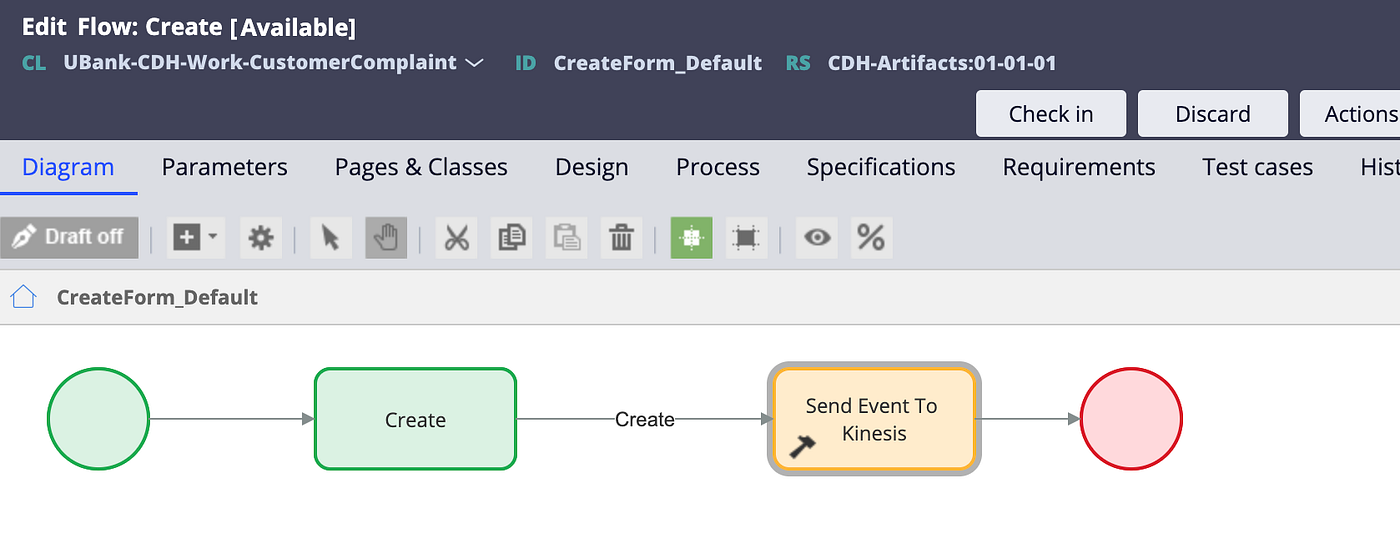
Configure the utility in the flow to send the event.
Step 5: Test the changes
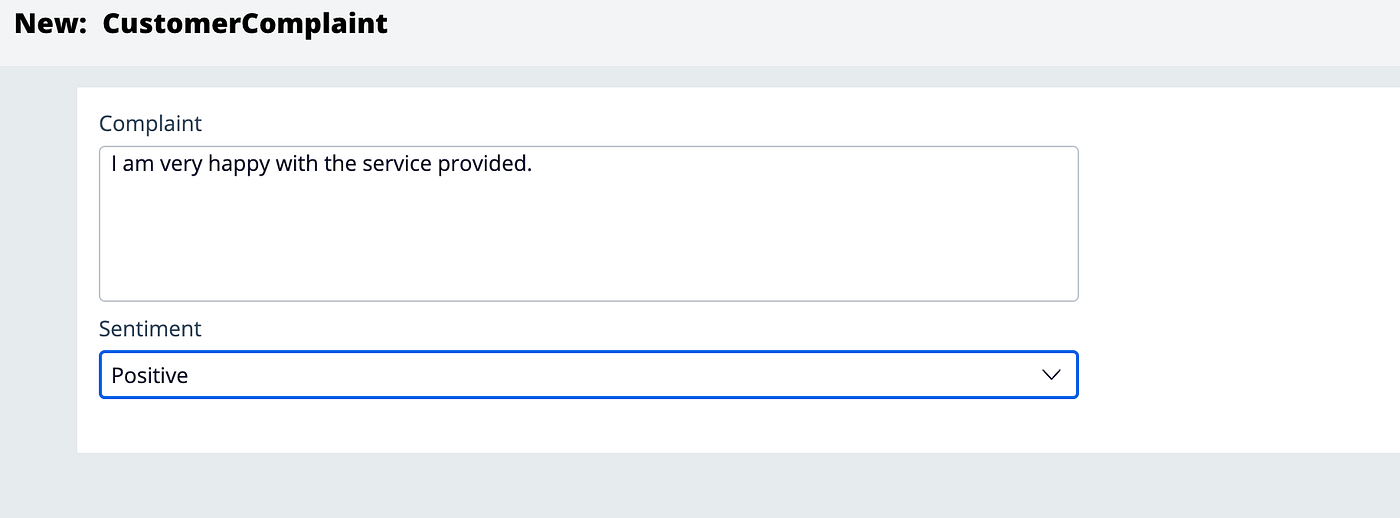
Create the customer complaint case to verify the event present in the AWS Kinesis Data Stream.
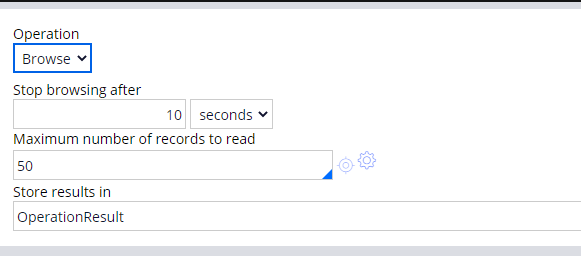
Now run the dataset to view the results with Operation as Browse.
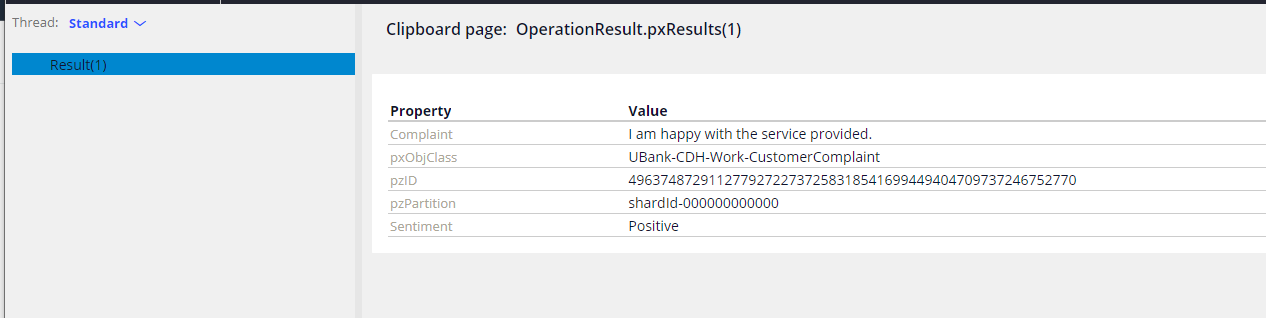
Hurrayyyyyyyyyyyy, now you successfully understood the usage of an event-driven approach between a PEGA App and the AWS Kinesis stream. Happy Learning :)